LOBSTR now supports Passkey accounts in mobile applications, providing a faster and more secure way to create and access your account.
What Are Passkeys?
Passkeys offer an alternative to traditional passwords, delivering quicker, simpler, and more secure access to your account.
Passkeys are a secure sign-in method stored by your device, password manager, or credential provider. Instead of entering an email address and password, you can sign in using your device security method, such as Face ID, Touch ID, fingerprint, screen lock, or another supported authentication method.
Passkeys are unique for each app and help protect your account from common password-related risks, such as weak passwords, password reuse, and phishing.
Important:
- Passkey accounts are available in LOBSTR mobile applications starting with version 15.0.0.
- The LOBSTR Web App continues to support email-based account registration.
- Passkey accounts are not linked to an email address.
- If you would like to create an account using an email address instead, you can create an email-based account through the LOBSTR Web App.
The Benefits of Using Passkeys
End-to-end encryption: Passkeys are end-to-end encrypted, meaning that not even Apple and Google can access them. This ensures a secure, private connection between an individual and your app.
Improved security: The security is enhanced because each key is uniquely associated with the app for which it was created. This prevents accidental sign-ins to fraudulent apps. Furthermore, with servers only storing public keys, the likelihood of hacking is significantly reduced.
Strong credentials: Passkeys are inherently robust. They cannot be guessed, reused, or compromised.
Safe from server leaks: Since servers only store public keys, they are less appealing targets for hackers.
Safe from phishing: Passkeys are directly linked to the specific app they were created for, eliminating the risk of being deceived into using a passkey on a fraudulent app.
Creating a Passkey Username
LOBSTR mobile apps use Passkey-based account creation. Learn more: How to create an account on LOBSTR?
During account creation, you will be asked to choose a LOBSTR username. It will also be used to name your Passkey.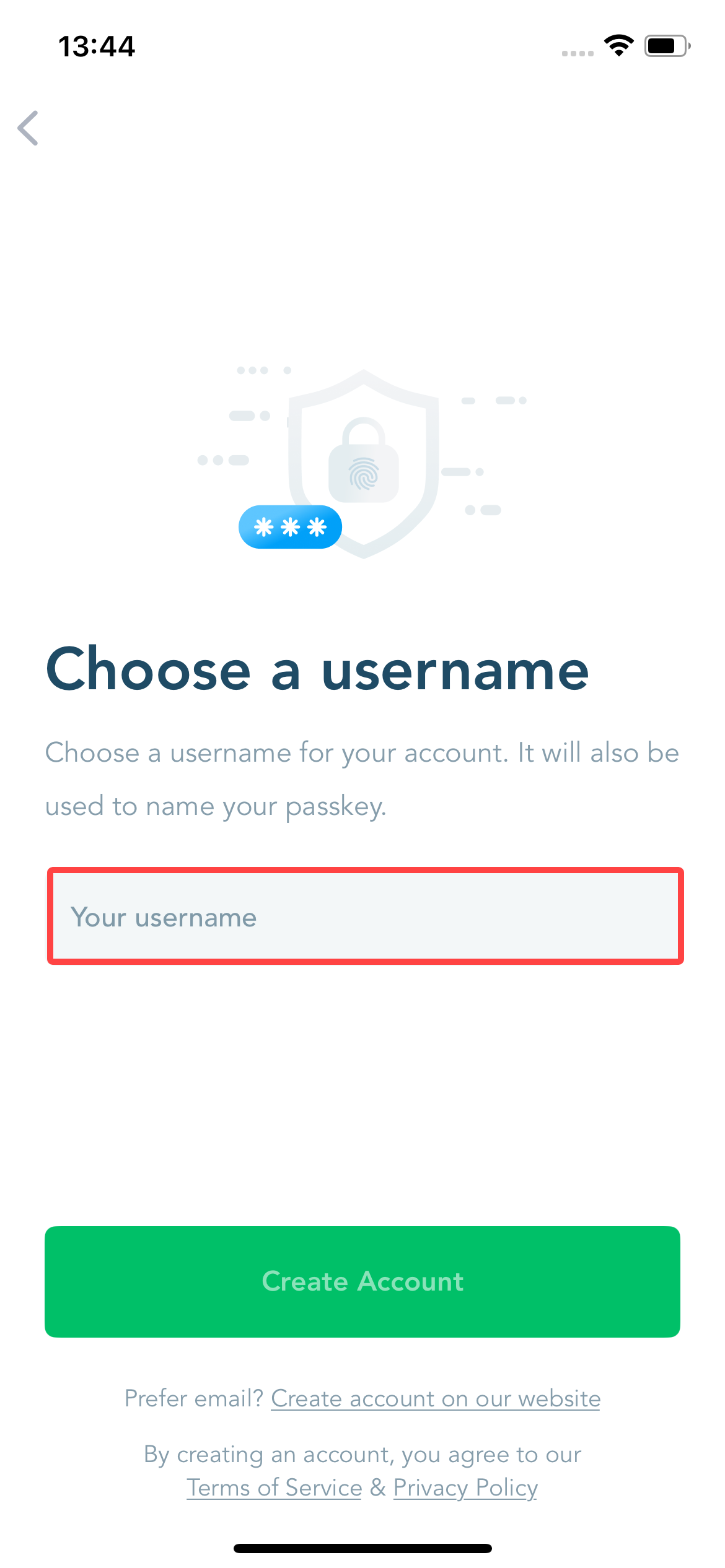
Your username:
- Is unique for every Passkey account.
- Must contain between 4 and 20 characters, cannot exceed 20 characters.
- Can include English letters, numbers, spaces, underscores, hyphens, and dots.
- You cannot use two consecutive spaces.
In your password manager, your LOBSTR Passkey will appear with a name similar to → LOBSTR wallet: username [DO NOT DELETE]
This helps you identify the Passkey and avoid deleting it by mistake.
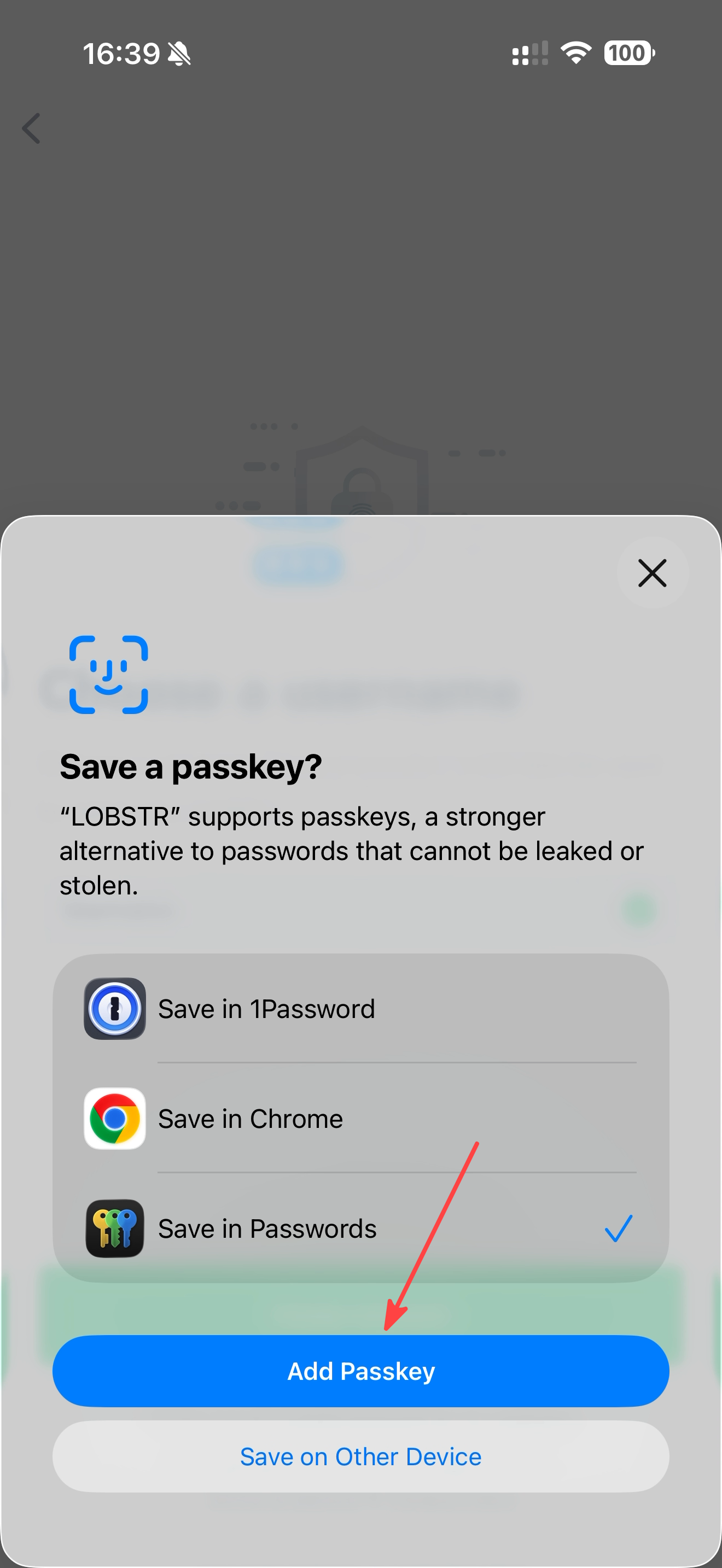
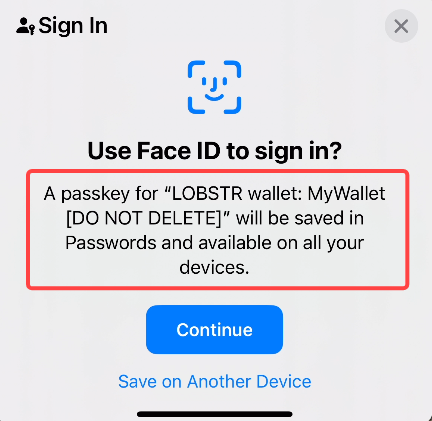
Once your username is available and your Passkey is created successfully, your LOBSTR account will be ready to use.
Important:
- A LOBSTR username is an identification mechanism, not a recovery mechanism.
- Your username helps identify your Passkey account, but it cannot be used to sign in, reset account access, or recover encrypted account data.
- If the Passkey associated with your LOBSTR account is lost, possession of the username alone is not sufficient to restore access.
If you experience any issues while creating or signing in to a Passkey account, please see: Passkey Account Troubleshooting.
Signing In with a Passkey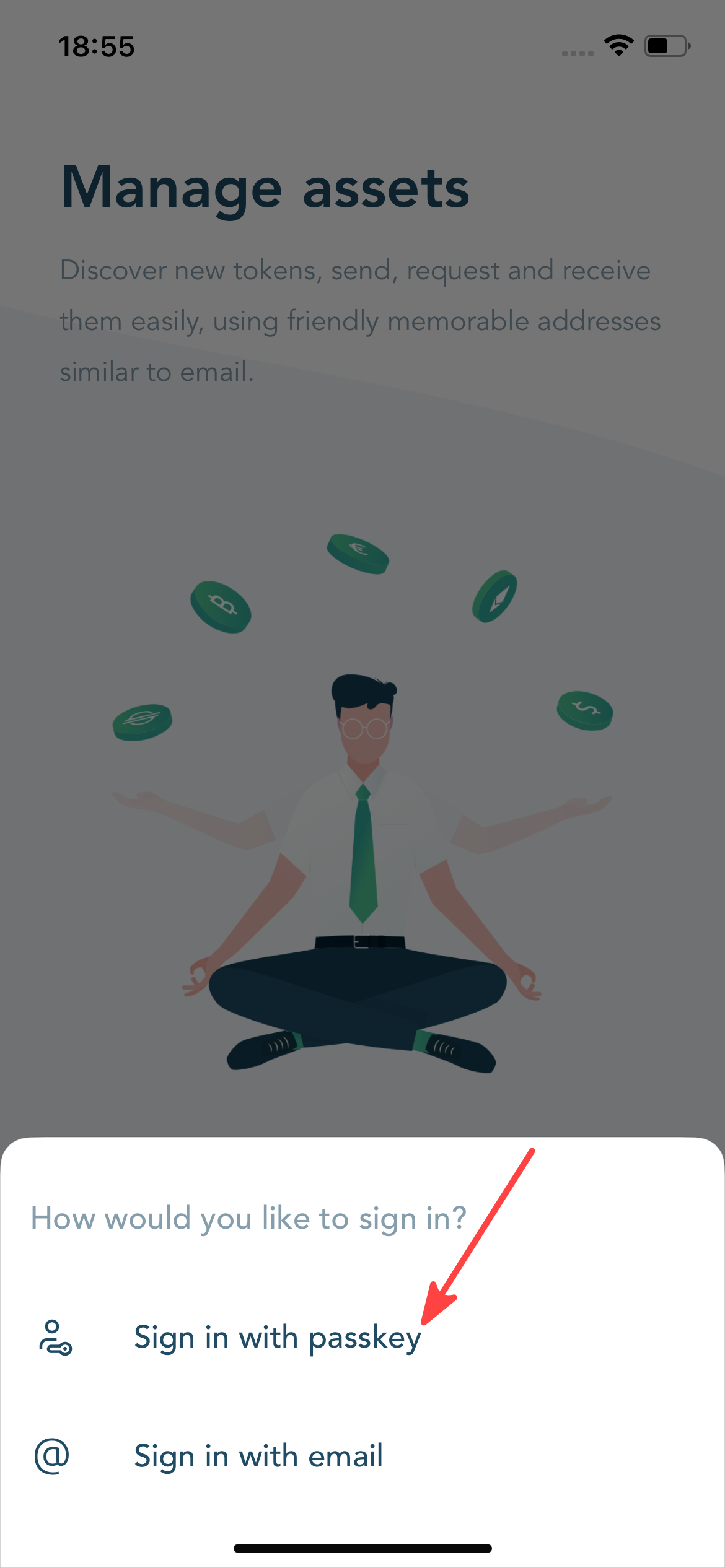
To sign in to your Passkey account:
- Open the LOBSTR mobile app.
- Tap Sign in with Passkey.
- Select your saved Passkey.
- Complete authentication using your device security method.
You can also enable Two-Factor Authentication (2FA) for additional account security. If 2FA is enabled on your account, you will be prompted to enter your 2FA code after completing Passkey authentication.
Note: The Sign in with Passkey option is only available on supported platforms and operating system versions (Android 10 or later, iOS 18.4 or later). If your device or OS version does not support Passkeys, this option will be hidden and you will only be able to sign in using your email address.
Supported Password Managers
Passkey accounts in LOBSTR require support for both Passkeys and PRF.
PRF is a Passkey (WebAuthn) protocol extension that allows LOBSTR to generate a unique encryption key for your account. If a password manager supports Passkeys but does not support PRF, it cannot be used to create or access a LOBSTR Passkey account.
The following providers are currently supported:
| Password Manager / Platform | Status |
| Passwords (iOS) | Supported. Recommended for iOS. |
| Google Password Manager (Android) | Supported. Recommended for Android. |
| Google Password Manager via Google Chrome (iOS) | Supported |
| 1Password (iOS & Android) | Supported. Verified alternative. |
| Samsung Pass | Not supported |
| Bitwarden | Not supported |
| Dashlane | Not supported |
| NordPass | Not supported |
Passkeys created in password managers that do not support PRF cannot be used to create or access a LOBSTR Passkey account.
If you attempt to register using an unsupported provider, LOBSTR will display an error and ask you to use a supported password manager instead.
Learn more: Passkey Account Troubleshooting
Using Your Passkey on Other Devices
Your Passkey account can be accessed on devices and platforms where your supported password manager is available and your Passkey is properly synced.
For example:
- Apple Passwords can sync Passkeys across Apple devices when iCloud Keychain is enabled.
- Google Password Manager can sync Passkeys across supported devices and platforms.
- 1Password can be used as a supported alternative on iOS and Android.
Important: Make sure your Passkey is saved and synced correctly by a supported password manager. If your Passkey is not available on another device, you may not be able to sign in to your LOBSTR Passkey account from that device.
Note for iOS Users
If you use Apple Passwords, make sure iCloud Keychain is turned on so your Passkey can be synced through your Apple account.
To check this:
- Open Settings.
- Tap your name.
- Go to iCloud.
- Open Passwords and Keychain.
- Make sure it is turned on.
Learn more:
Use passwords and Passkeys across your devices with Google Password Manager
Can I Change or Delete My Passkey?
You can rename your Passkey if needed. Renaming a Passkey does not affect your ability to access your LOBSTR account.
However, we recommend keeping the original name whenever possible. The default Passkey name helps identify your LOBSTR account and may make troubleshooting easier if you ever need assistance from our Support team.
Do not delete your Passkey.
Your Passkey is required to access your account and encrypted account data. If your Passkey is deleted, corrupted, incorrectly exported, or stored in an unsupported provider, LOBSTR will not be able to recover access to your encrypted account data.
Deleting your Passkey will result in permanent loss of access to your LOBSTR account.
If you need to move to a different device or password manager, please see: Passkey Account Troubleshooting
Recovery and Account Access
Passkey accounts work differently from email-based accounts.
Your account access depends on the Passkey and PRF data stored by your password manager or credential provider.
Important: If your Passkey is deleted, corrupted, incorrectly exported, or stored in a provider that does not support PRF, LOBSTR will not be able to recover access to your encrypted account data.
Email-based account recovery is not available for Passkey accounts.
If you need to move to a different password manager or platform, we recommend creating a new account and manually transferring your Recovery Phrase and keys instead of relying on Passkey export and import.
Was this article helpful?
That’s Great!
Thank you for your feedback
Sorry! We couldn't be helpful
Thank you for your feedback
Feedback sent
We appreciate your effort and will try to fix the article