Passkey accounts provide a secure and convenient way to access LOBSTR. However, in some situations you may encounter issues related to password managers, device compatibility, account registration, or sign-in.
This article covers known Passkey-related issues and the recommended steps to resolve them.
1. Unsupported Password Manager
LOBSTR Passkey accounts require support for both Passkeys and PRF.
PRF is a Passkey (WebAuthn) protocol extension used by LOBSTR to generate the encryption key required to access your account data.
Some password managers support Passkeys but do not support PRF. In these cases, a Passkey may be successfully created and saved, but LOBSTR will not be able to complete account registration or sign-in.
During Registration
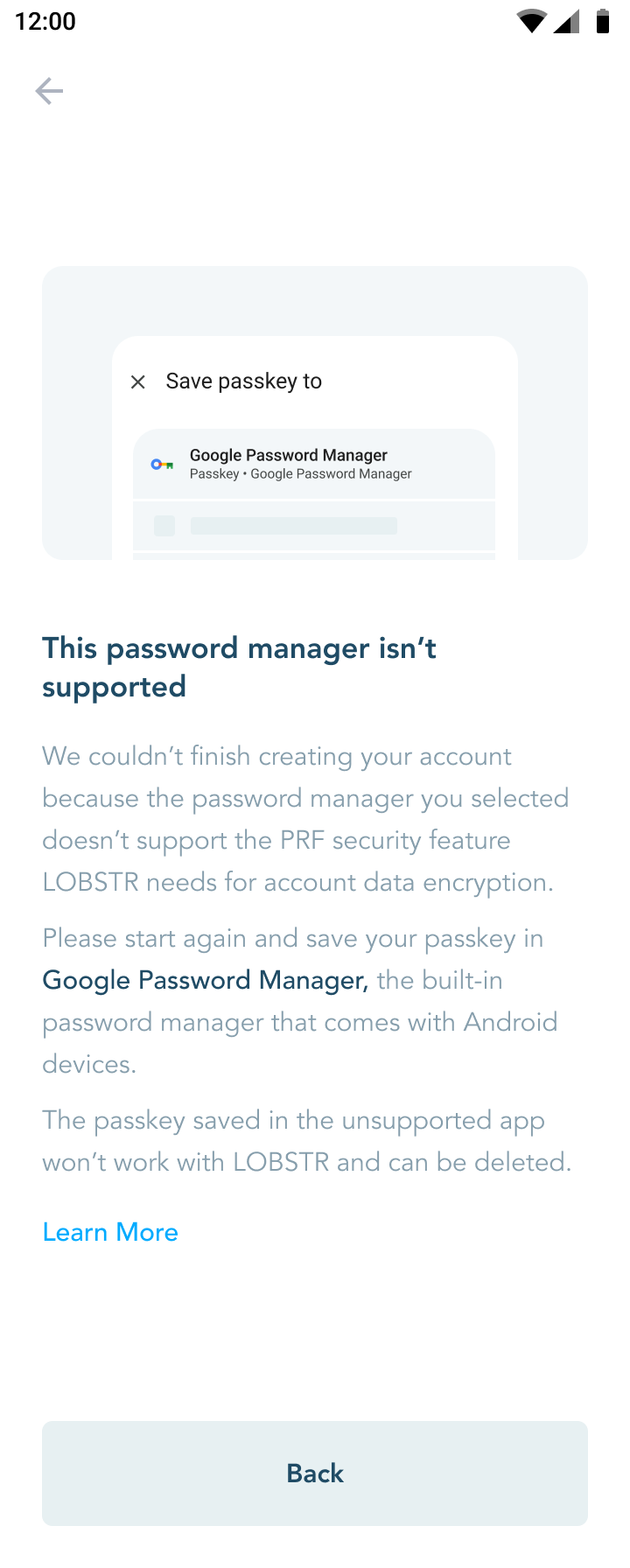 | 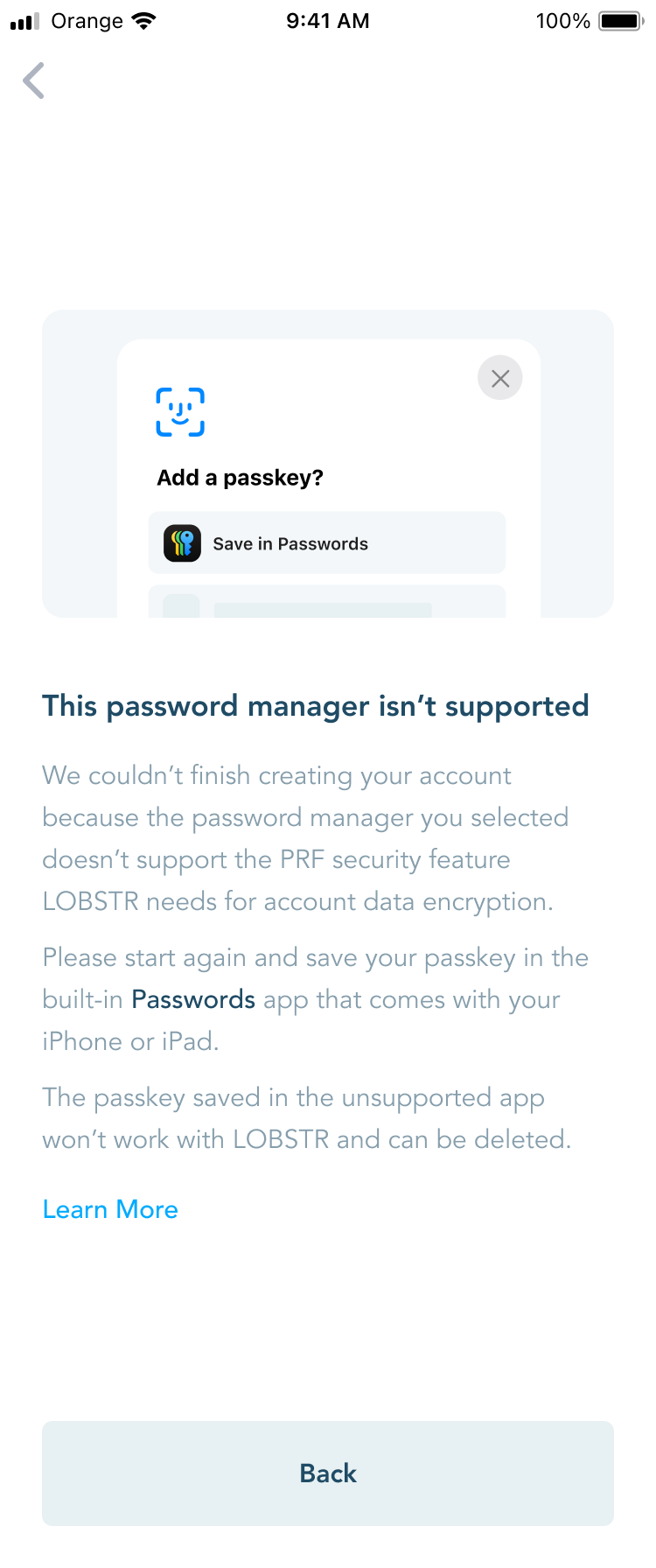 |
You may see an error indicating that your password manager does not support PRF.
If your password manager does not support PRF, LOBSTR will not be able to complete the account registration process, even though the Passkey may be successfully saved in your password manager.
To resolve this issue:
- Delete the Passkey that was just created in the unsupported password manager.
- Start registration again.
- Use one of the supported providers:
- Passwords (iOS)
- Google Password Manager (Android) / Google Chrome (iOS)
- 1Password (iOS and Android)
During Sign In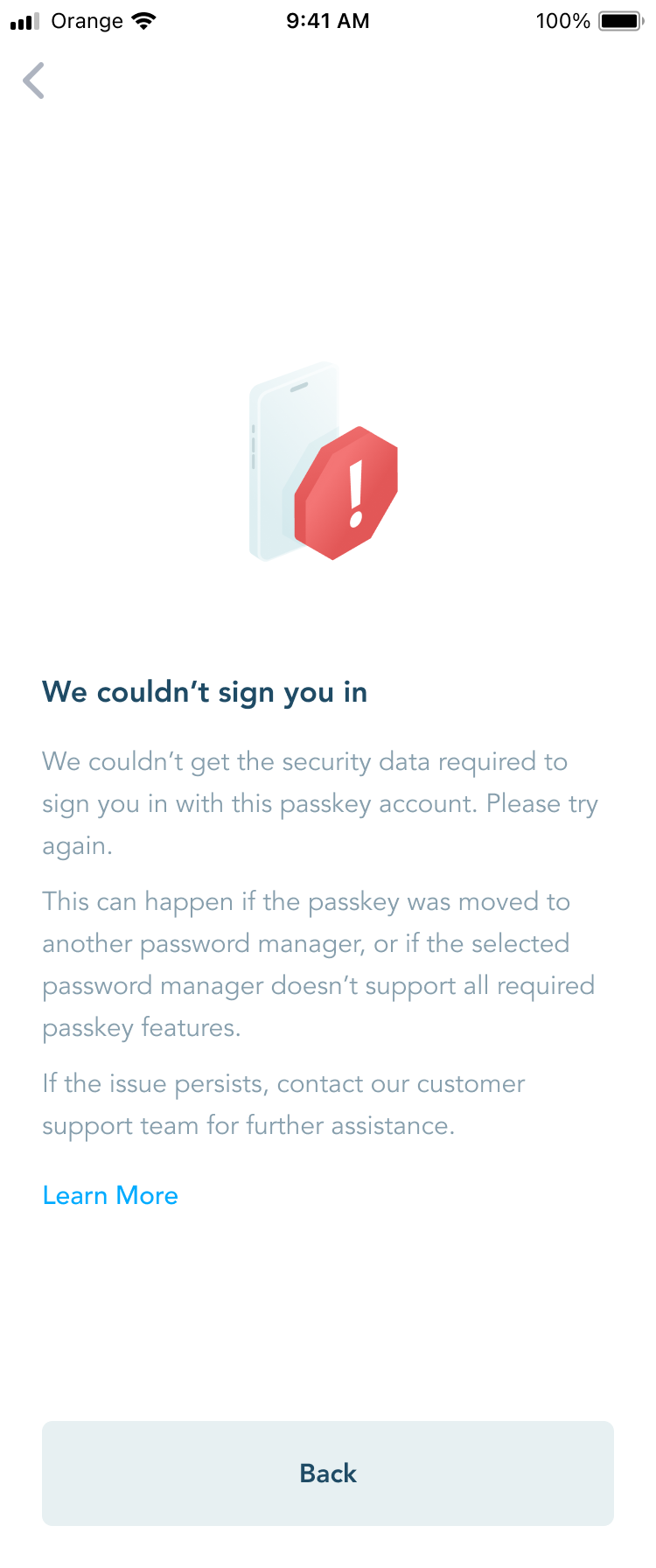 You may see an error when attempting to sign in with a previously created Passkey.
This usually means that the Passkey was never successfully registered with LOBSTR because PRF was unavailable during registration.
In this case, you will need to create a new account using a supported password manager.
2. Unsupported Operating System Version
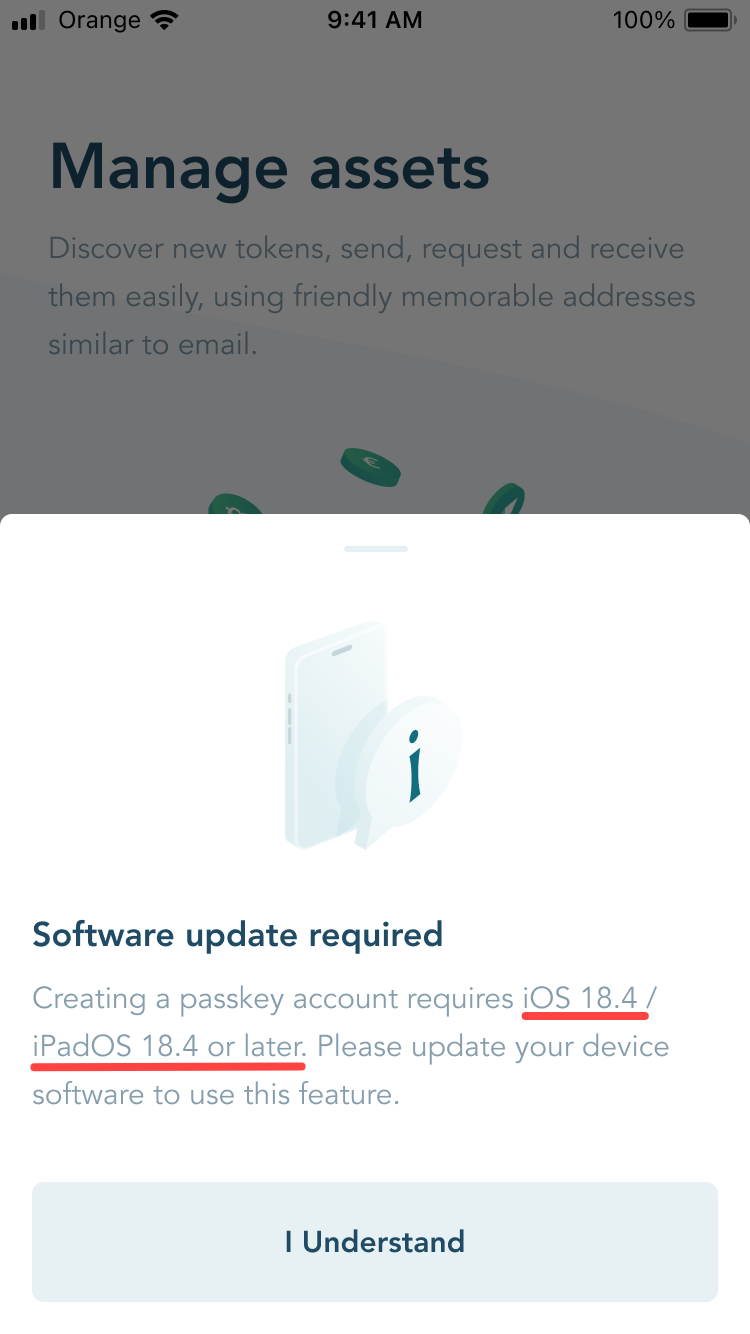 | 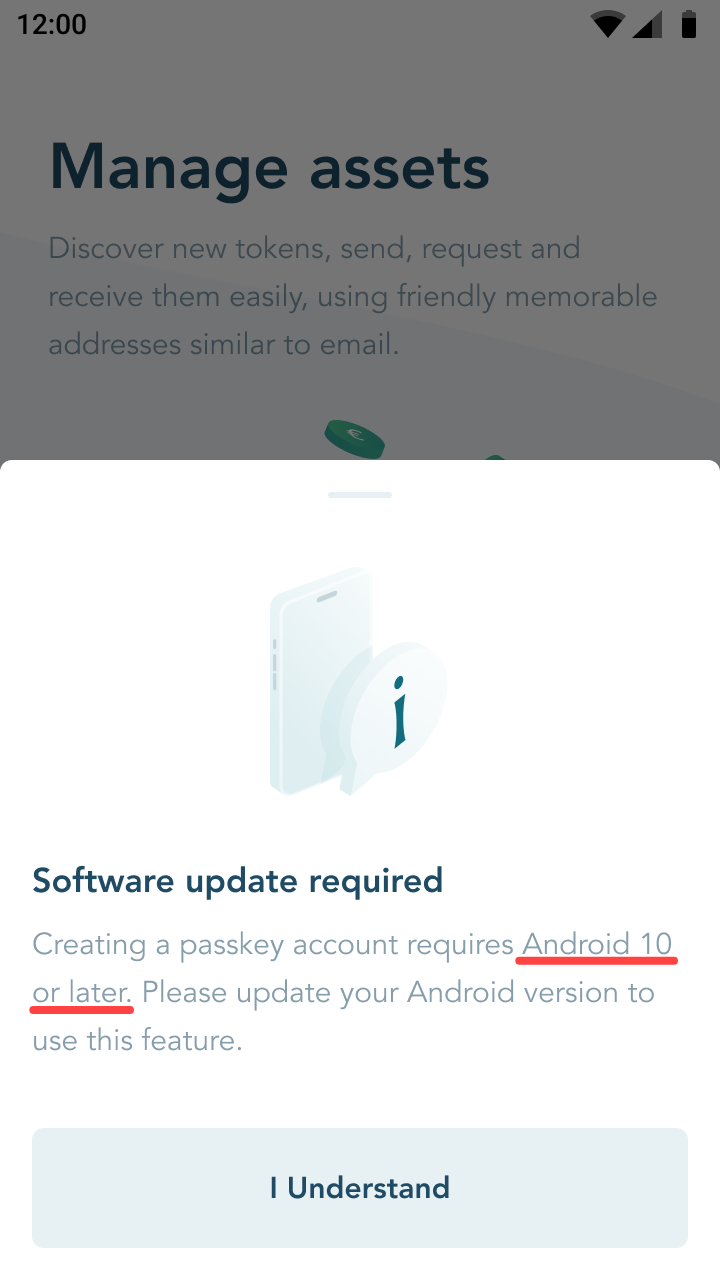 |
Passkey registration and sign-in are only available on supported operating system versions.
Minimum requirements:
- Android 10 or later
- iOS 18.4 or later
If your device does not meet these requirements, you may see an error asking you to update your operating system.
To resolve this issue:
- Update your device to a supported operating system version.
- Restart the LOBSTR app.
- Try again.
3. Huawei and Related Android Devices
On some Huawei devices and Android devices that do not use a standard Google-certified Android environment, Passkey account creation is not available.
You may see the following message: "Passkey account creation is not available on this device."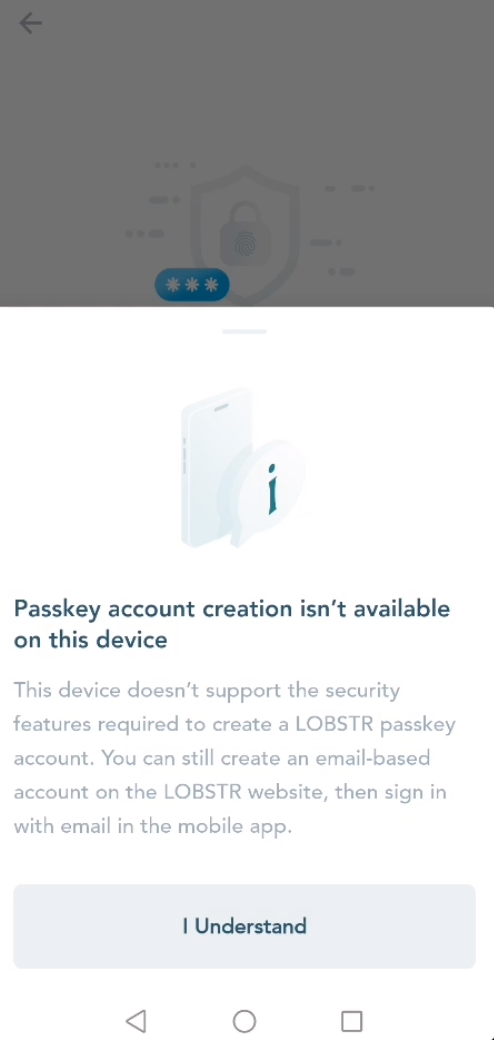
This limitation is related to device-specific compatibility issues affecting Passkey functionality.
If this happens, we recommend:
- Creating a Passkey account on another Android or iOS device, or
- Creating an email-based account through the LOBSTR Web App and signing in to that account from the mobile app.
4. I Deleted My Passkey
Your Passkey is required to access your LOBSTR account.
If you delete the Passkey associated with your account, LOBSTR cannot restore it.
Important:
- Do not delete your LOBSTR Passkey from your password manager.
- Do not remove it from your device unless you are certain it is safely synchronized and available through your password manager.
If your Passkey has been permanently removed and is no longer recoverable through your password manager, you will need to:
- Create a new LOBSTR account.
- Reconnect your wallet using your Recovery Phrase or wallet credentials.
5. Moving Passkeys Between Password Managers
Exporting a Passkey from one password manager and importing it into another is not supported and is not recommended.
Doing so may result in loss of access to your LOBSTR Passkey account.
If you need access to your account on multiple devices, we recommend using a supported password manager that synchronizes Passkeys across devices, such as:
- Google Password Manager
- 1Password
- Apple Passwords (within the Apple ecosystem)
If you need to switch password managers, devices, or ecosystems, we recommend:
- Creating a new account.
- Manually transferring your Recovery Phrase and wallet credentials.
6. Android: Sign in with Passkey Does Not Open
On some Android devices, tapping Sign in with Passkey may display a loading indicator without showing the Passkey selection screen.
This is a known Android system-level issue that is currently being worked on by Google to resolve. It can affect Passkey selection on some devices. The issue is not specific to LOBSTR and depends on how Android and third-party password managers handle Passkeys.
This issue typically occurs when a large number of LOBSTR Passkeys are stored in 1Password.
In some cases, Sign in with Email may also stop responding until the app is restarted.
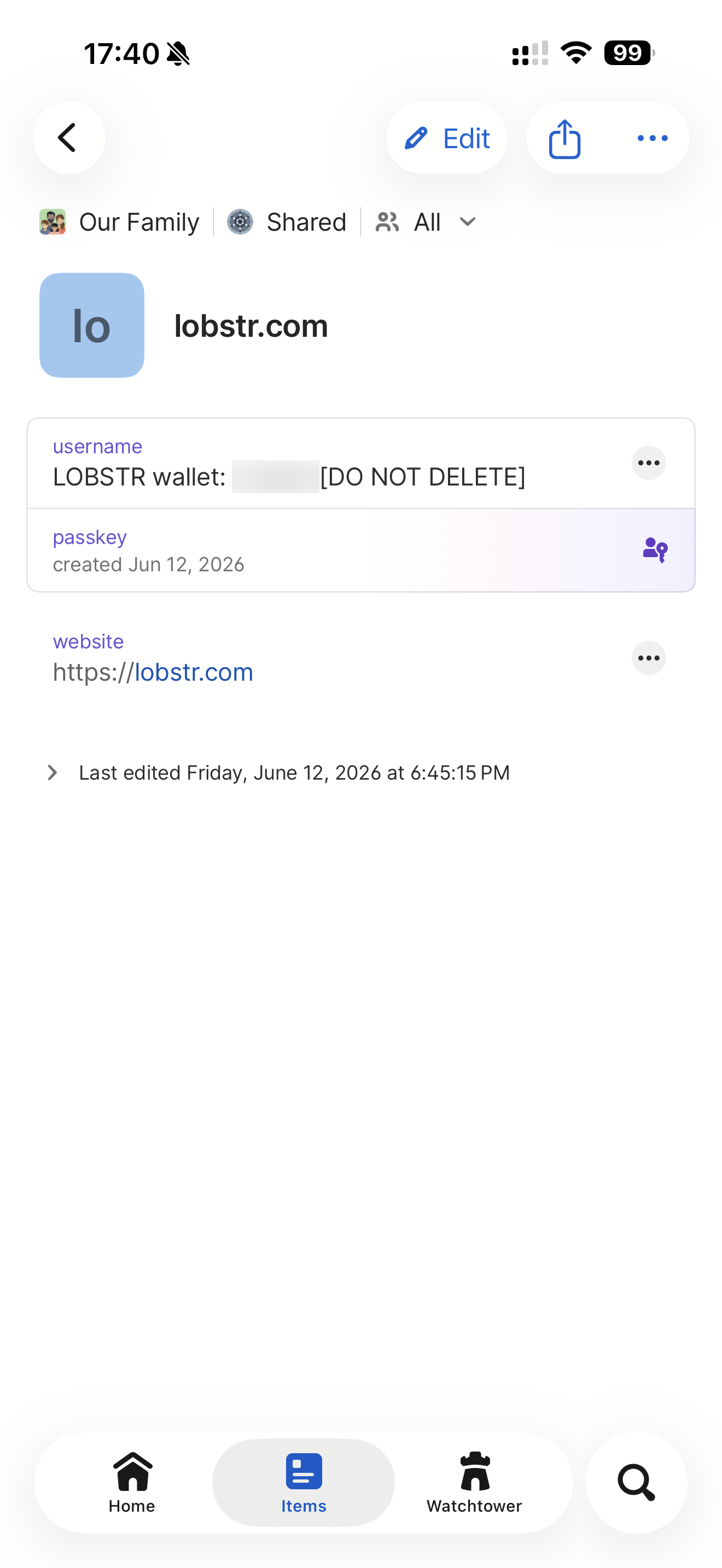
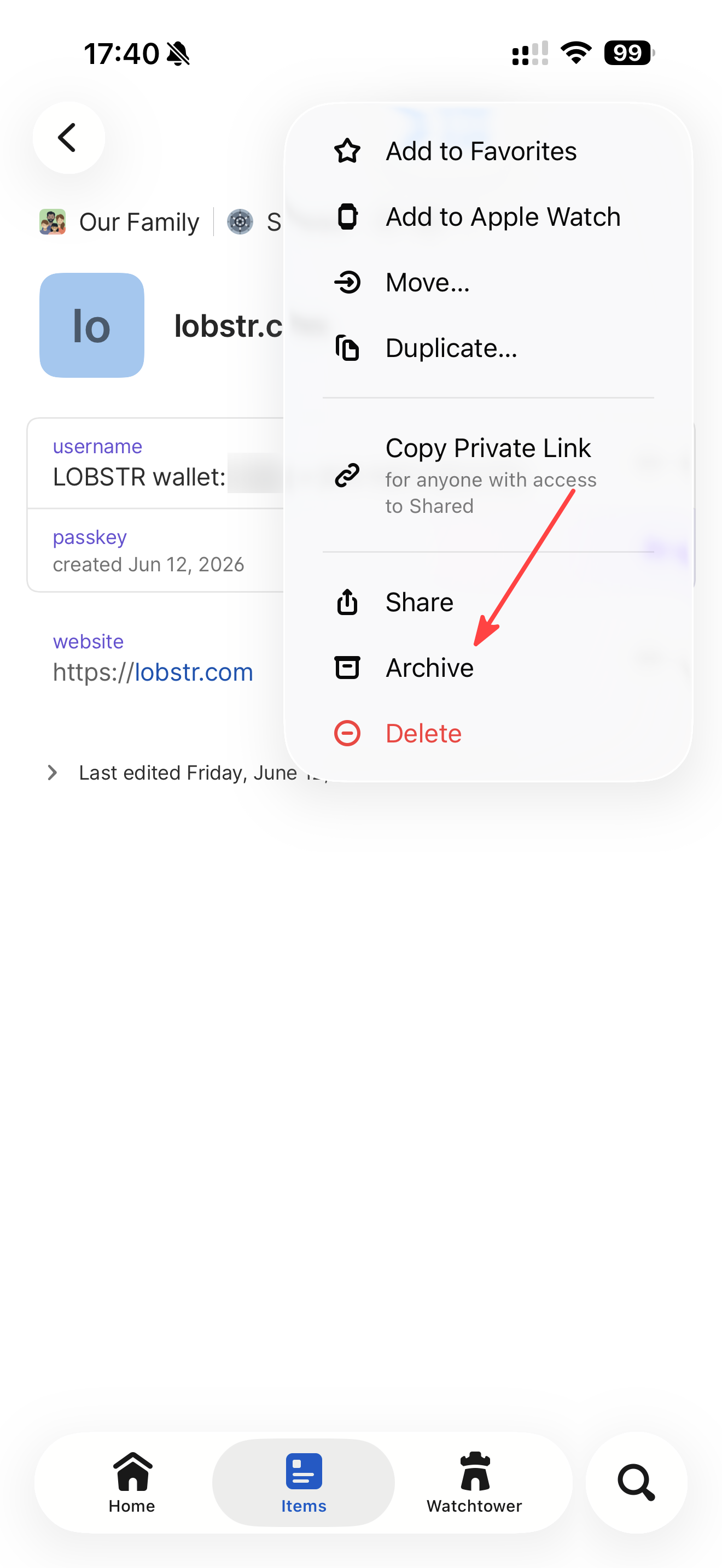
Option 1: Archive Unused Passkeys:
If you have a large number of LOBSTR Passkeys stored in 1Password, try archiving the ones you do not currently use.
Archived Passkeys are removed from the Passkey selection list but are not deleted and can be restored later if needed.
The exact steps for archiving a Passkey may vary depending on your device, operating system, and 1Password version.
The examples below show how Passkeys can be archived in 1Password. Your screens may look different.
 |  | 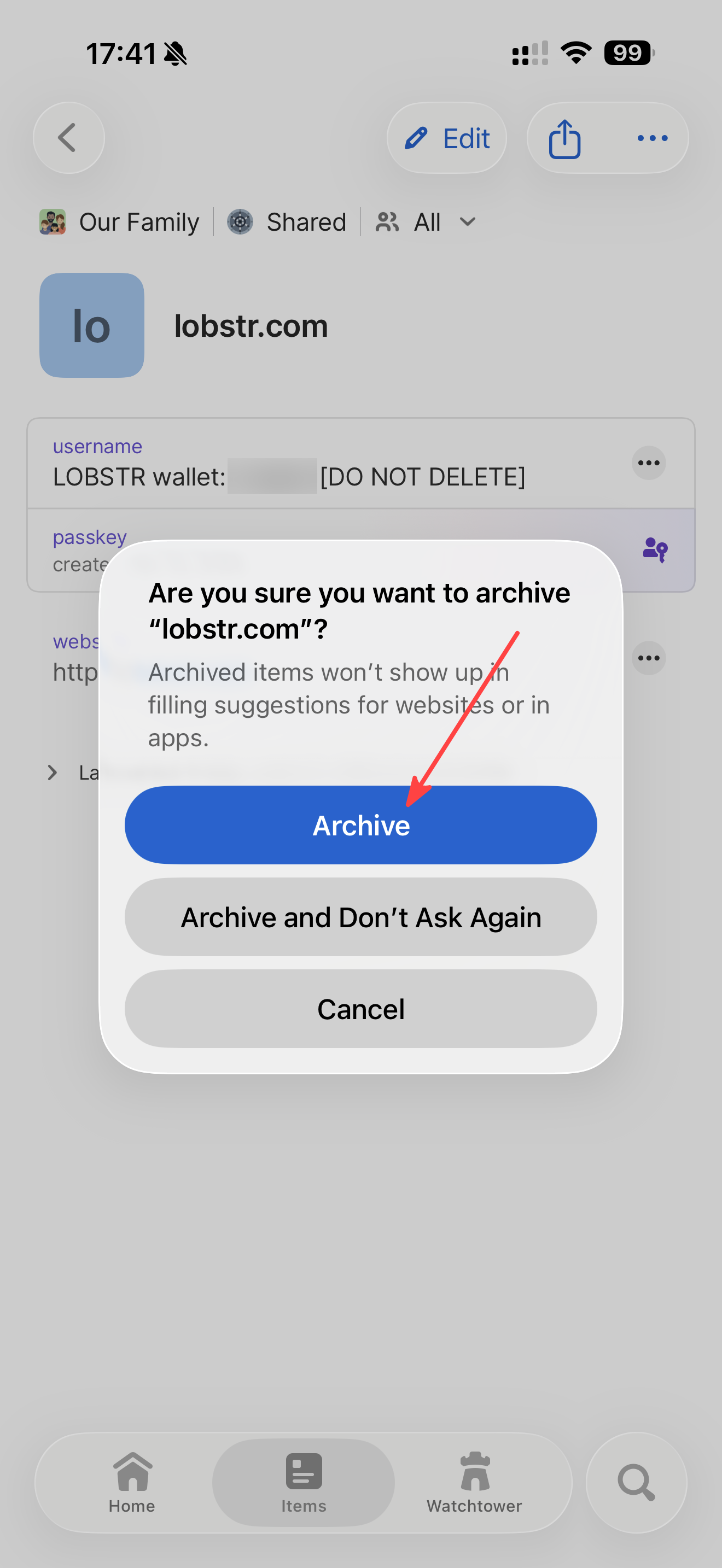 |
Important: Archiving a Passkey is different from deleting it. Archived Passkeys can be restored later, while deleted Passkeys will result in permanent loss of access to your LOBSTR Passkey account.
Option 2: Disable 1Password as a Login Provider:
Temporarily disable 1Password as a Passkey provider and use Google Password Manager instead.
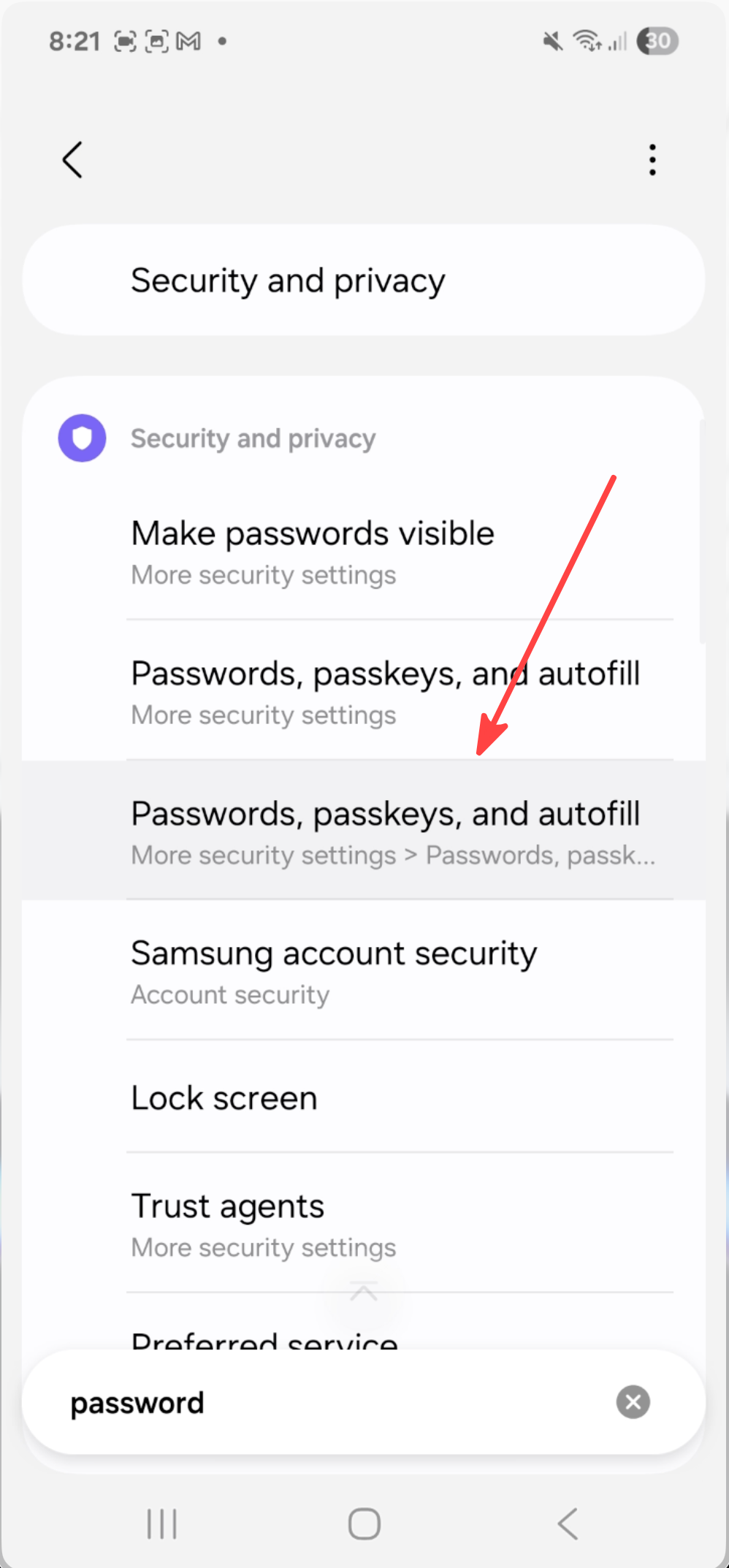
On some Android devices, you can manage Passkey providers under:
Settings → Security and privacy → Passwords, passkeys, and autofill
From there:
- Open Passwords, passkeys, and autofill.
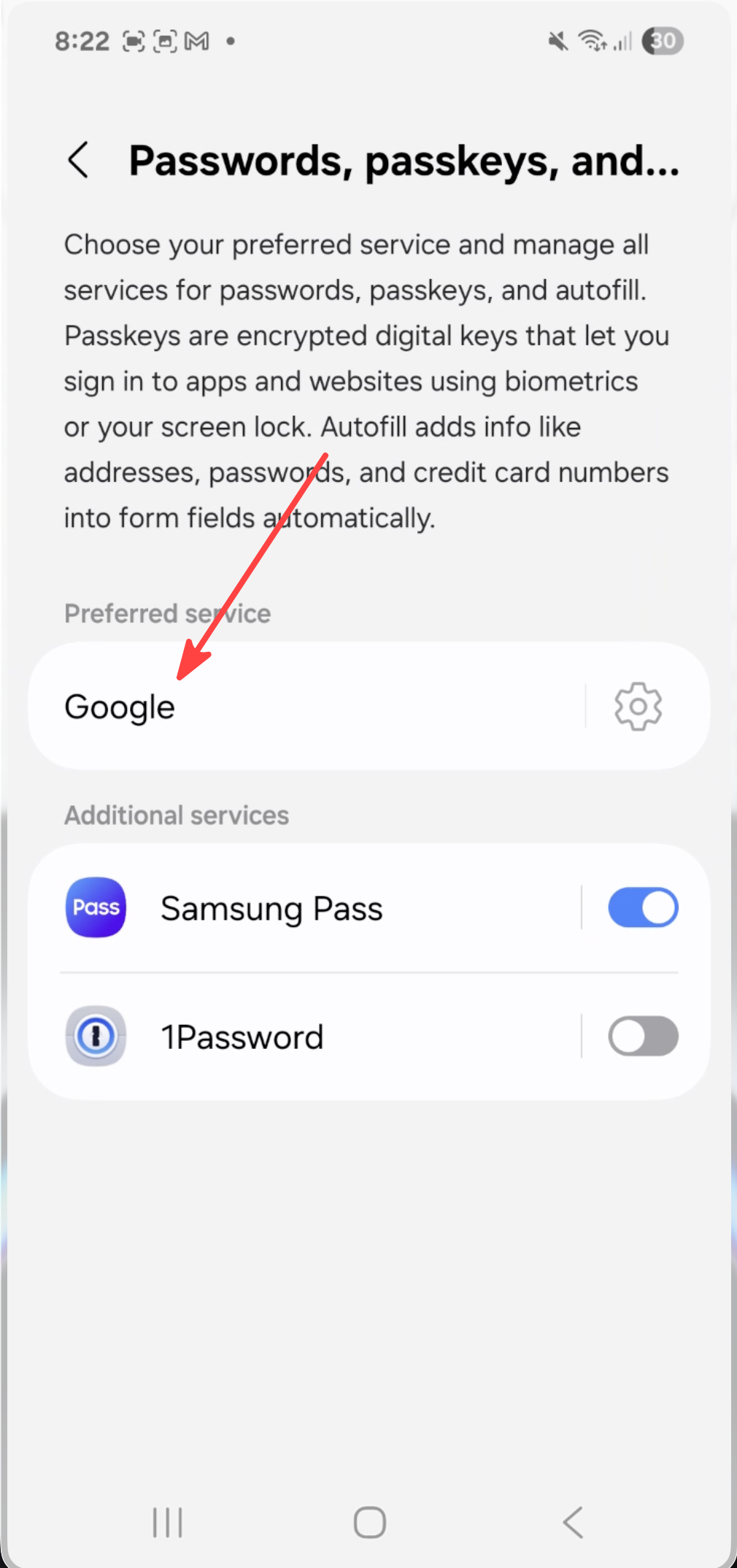
- Set Google Password Manager as your preferred service.
- Disable 1Password under Additional services.
- Return to the LOBSTR app and try signing in again.
Example for Samsung devices (menu names and locations may vary depending on your Android device manufacturer and Android version):
 | 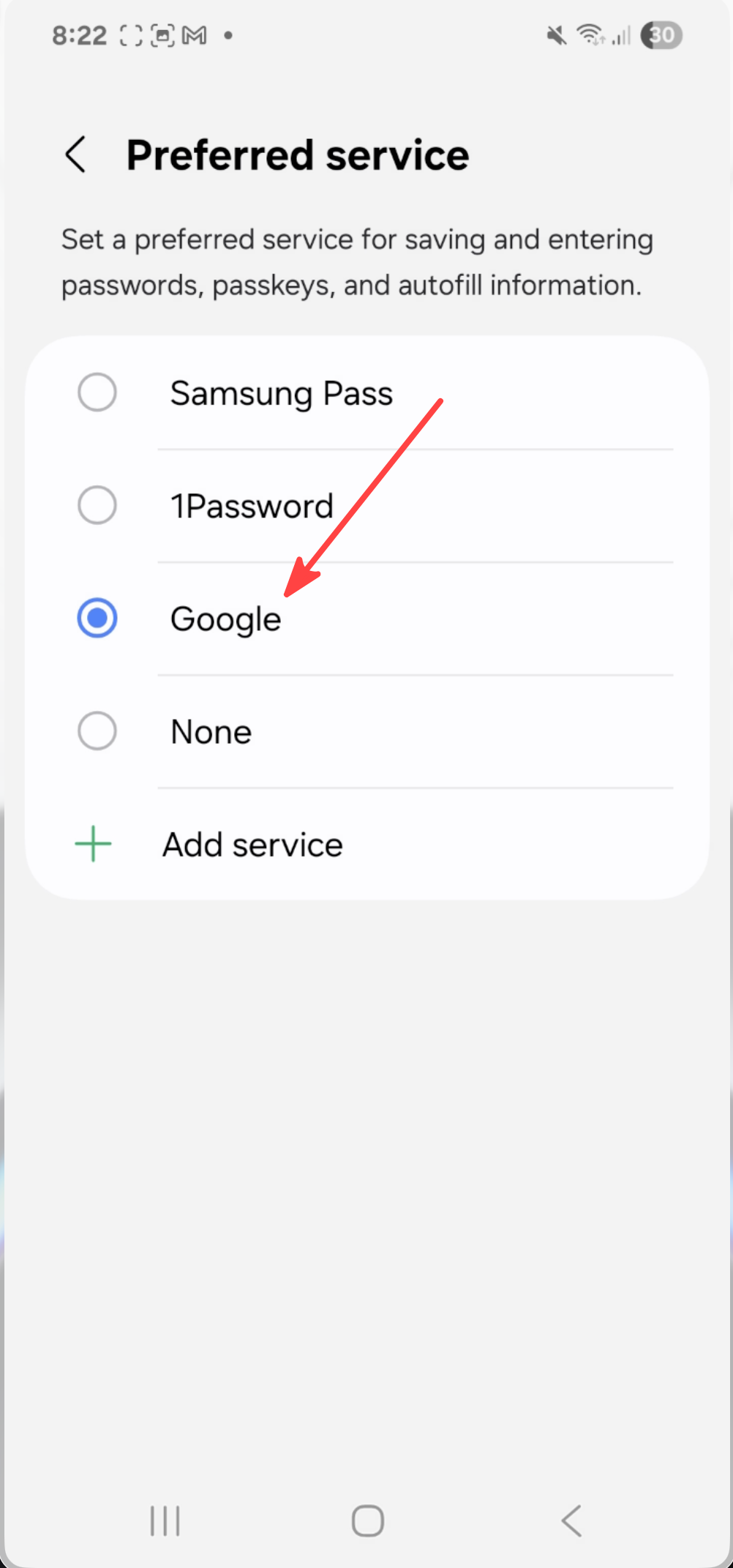 |  |
Note: The ability to choose a preferred Passkey provider is only available on Android 14 and later. Earlier Android versions use Google Password Manager by default.
7. Security Verification Failed
During registration or sign-in, you may see the following message:
"We cannot verify your action due to unusual activity. Please check your device and internet connection, and try again."
This security verification helps protect LOBSTR users from spam, abuse, phishing attempts, and automated attacks.
To resolve this issue:
- Check your internet connection.
- Restart the application.
- Disable VPN or proxy services, if applicable.
- Try signing in from another device.
- Wait a short period of time and try again later.
8. Registration Failed After Creating a Passkey
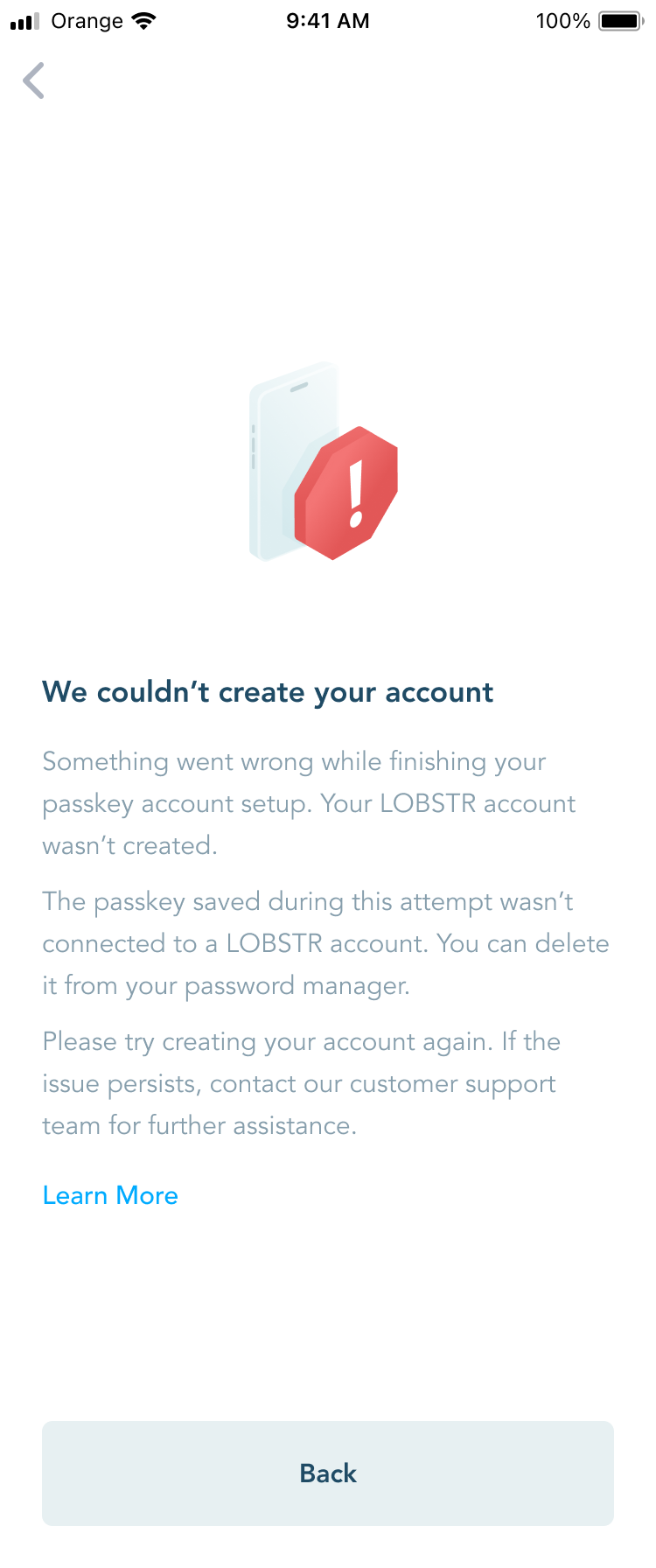
In rare cases:
- The Passkey is saved successfully.
- PRF is generated successfully.
- Registration cannot be completed on the server.
Possible reasons include:
- Temporary server issues.
- Loss of internet connection.
- Another user registering the same username at the same time.
In this situation, the Passkey exists in your password manager, but the account was never fully created on LOBSTR servers and cannot be used for sign-in.
To resolve this issue:
- Delete the inactive Passkey from your password manager.
- Start the registration process again.
- Create a new account.
For more information about Passkey accounts, please see: Passkey Accounts on LOBSTR
Was this article helpful?
That’s Great!
Thank you for your feedback
Sorry! We couldn't be helpful
Thank you for your feedback
Feedback sent
We appreciate your effort and will try to fix the article