With LOBSTR, you can easily top up your Stellar wallet via bank transfer, thanks to our partnership with MoonPay (powered by Iron). Once you set up your bank details in USD or EUR in the LOBSTR wallet, you can initiate a bank transfer. The funds will be automatically converted to USDC on the Stellar network and delivered to your wallet.
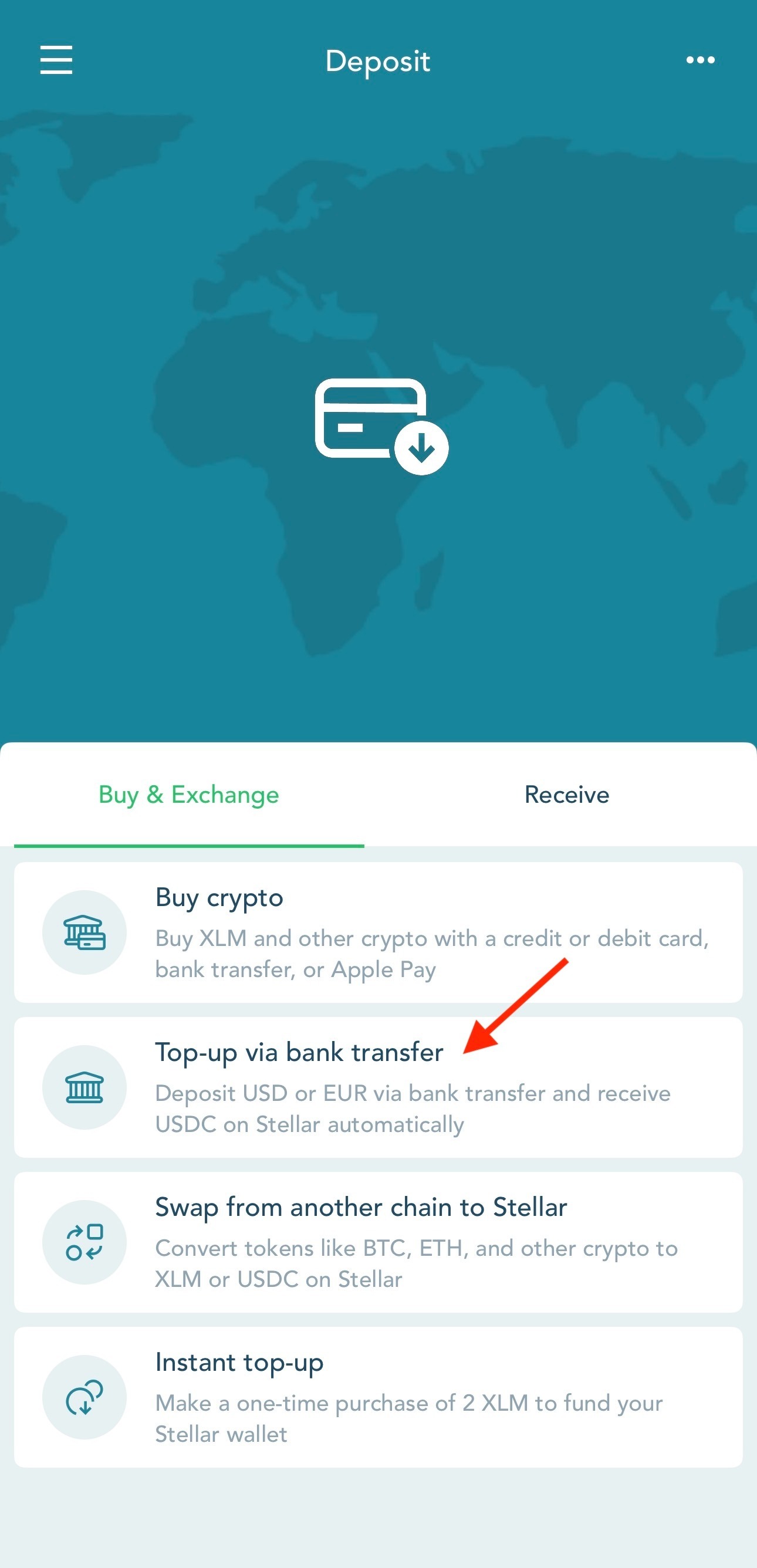
To top up your wallet balance in the LOBSTR mobile app, go to the Deposit → Buy & Exchange → Top-up via bank transfer.
What this feature does:
- Allows you to set up bank details in your name for USD or EUR.
- Supports bank transfers initiated by you or sent by someone else, which are automatically converted to USDC on the Stellar network.
- Sends USDC directly to your Destination Stellar Wallet (your Stellar address in LOBSTR).
What this feature doesn't do:
- It does not support direct debits, 'pull' payments, or methods like Venmo, Apple/Google Pay.
- This feature is not intended for holding funds. Once a payment is received, it will be converted to USDC on the Stellar network.
Service availability
Bank transfer deposits are available only in territories supported by both MoonPay and Iron, and may be unavailable in certain regions. See Iron's documentation for the up-to-date country list.
Fees and deposit limits
Fees and limits vary based on your verification level with MoonPay and your region, and are deducted from the deposit amount. To increase your limits, you may need to provide additional documentation to MoonPay.
Limits
- The minimum transaction amount is €1.00 (or equivalent in other supported currencies).
- The minimum payout amount is 1 USDC.
- For SWIFT transactions specifically, the minimum payout is $5 or €5.
- Transactions that fall below these minimum thresholds may be automatically rejected and will not be processed by MoonPay.
Transaction Fees
Each transaction includes three types of fees:
- Transaction fee: charged as a percentage of the transaction amount.
- Banking fee: charged for using banking rails (e.g., SEPA, ACH, Wire).
- Network fee: varies and is charged by the Stellar network.
| Fee | Amount |
| Transaction fee | 0.40% |
| Banking Fee (ACH) | $0.50 |
| Banking Fee (Wire) | $20.00 |
| Banking Fee (SEPA) | €0.50 |
| Banking Fee (RTP) | $1.00 |
| Network fee | Variable |
Note:
- You can view the actual fees in the MoonPay widget or when setting up your account details.
- Your bank may apply additional fees (for example, wire transfer fees).
How to set up bank details for transfers
1. Open the LOBSTR mobile app.
2. Go to Deposit → Buy & Exchange and tap Top-up via bank transfer.
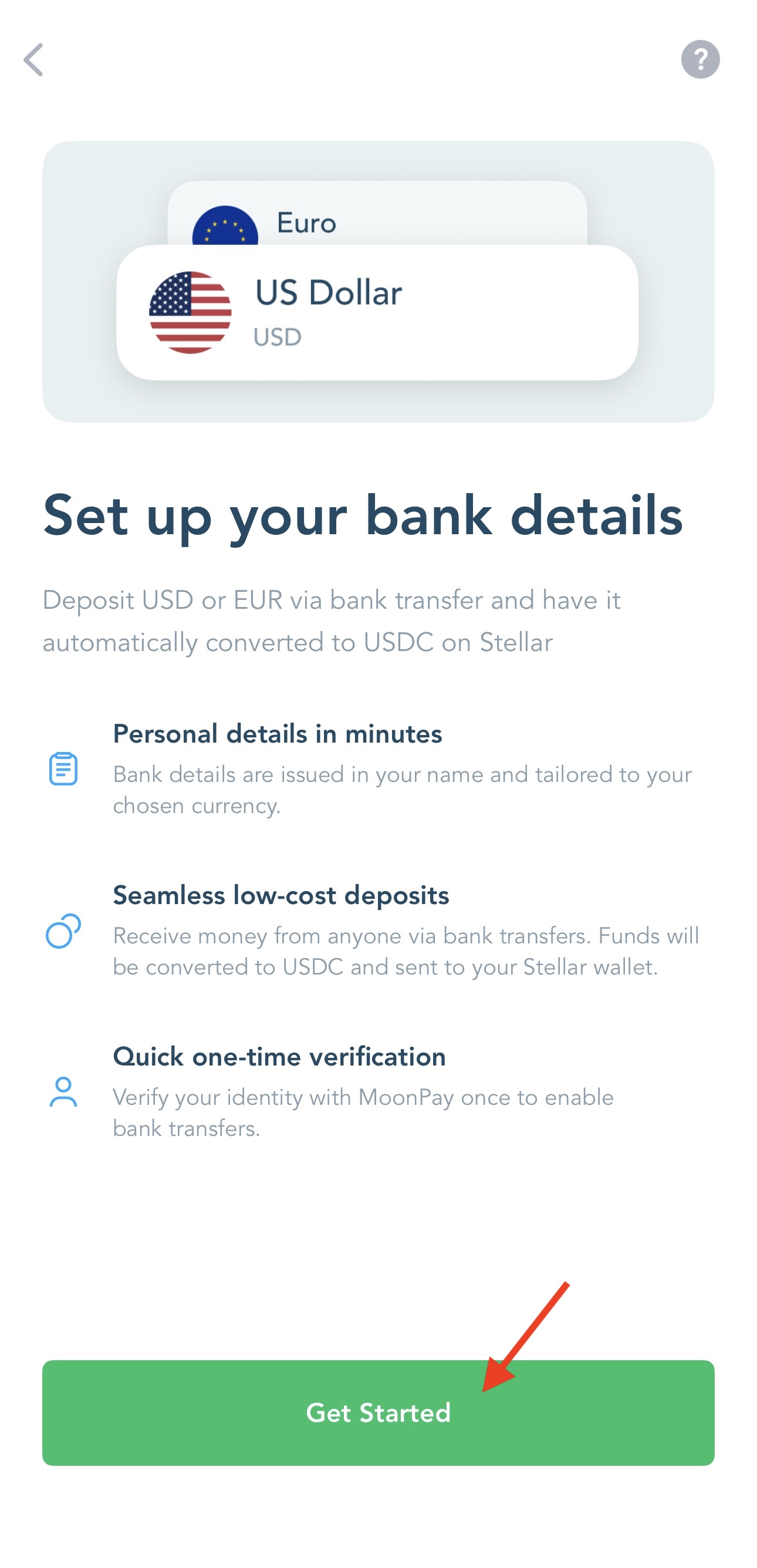
3. Tap 'Get Started'.
4. If prompted, complete the required wallet setup:
- Add USDC asset (this is required to receive deposits later).
- If your Stellar wallet is not activated yet, you may be asked to activate it first.
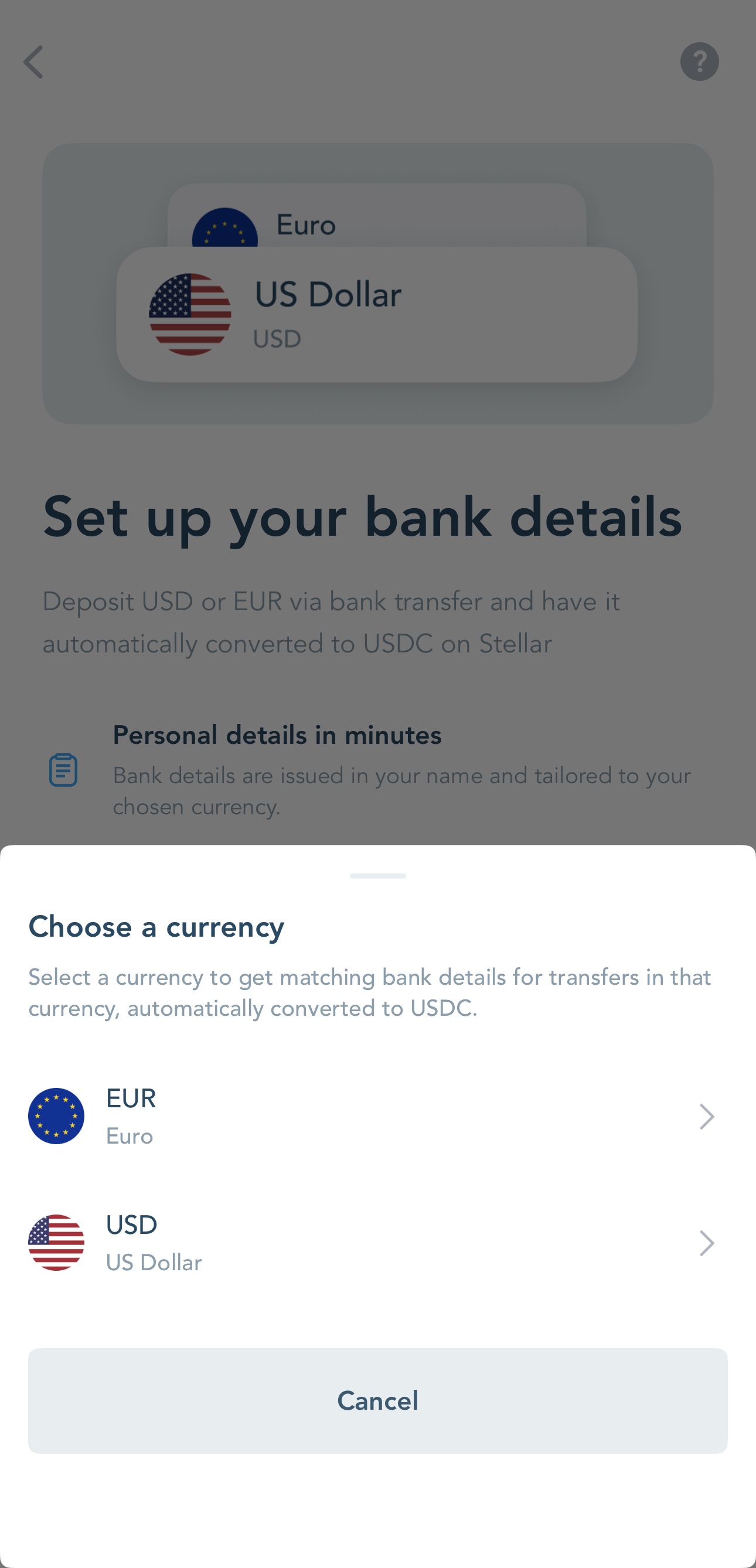
5. On 'Choose a currency', select the fiat currency your bank will send:
- USD (US Dollar)
- EUR (Euro)
6. You'll be redirected to MoonPay to sign in or create a MoonPay account and complete verification (KYC/POA) if required.
- Verification is typically one-time.
- If you're already verified with MoonPay, you may be able to complete setup faster.
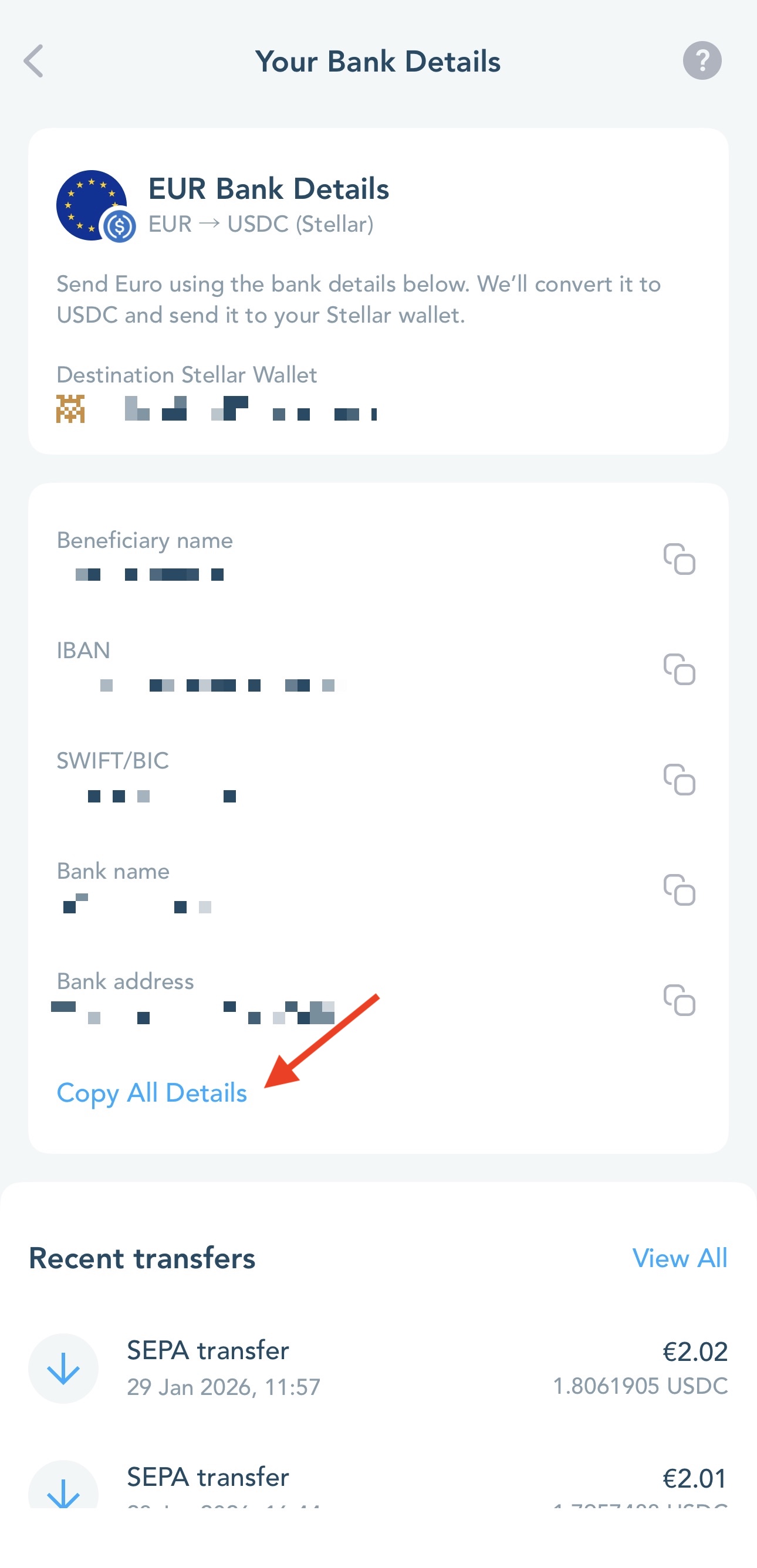
7. When setup is complete, you'll return to LOBSTR and see Your Bank Details.
Where to find your bank details
Go to Deposit → Top-up via bank transfer to open Your Bank Details.
- Conversion route for your details: USD → USDC (Stellar) or EUR → USDC (Stellar).
- Destination Stellar Wallet (wallet associated with your bank details, where USDC will be deposited).
- Your bank details for the selected currency (ready to share or paste into your banking app).
Tip: Use 'Copy All Details' on the Your Bank Details screen to copy all bank details in one tap.
Before you send a transfer
Make sure to add the USDC asset for the Stellar wallet connected to your bank details. USDC is delivered to the Destination Stellar Wallet displayed on the 'Your Bank Details' screen.
If you see the banner 'Allow USDC deposits', tap on it and follow the prompt to add the USDC asset to your wallet.
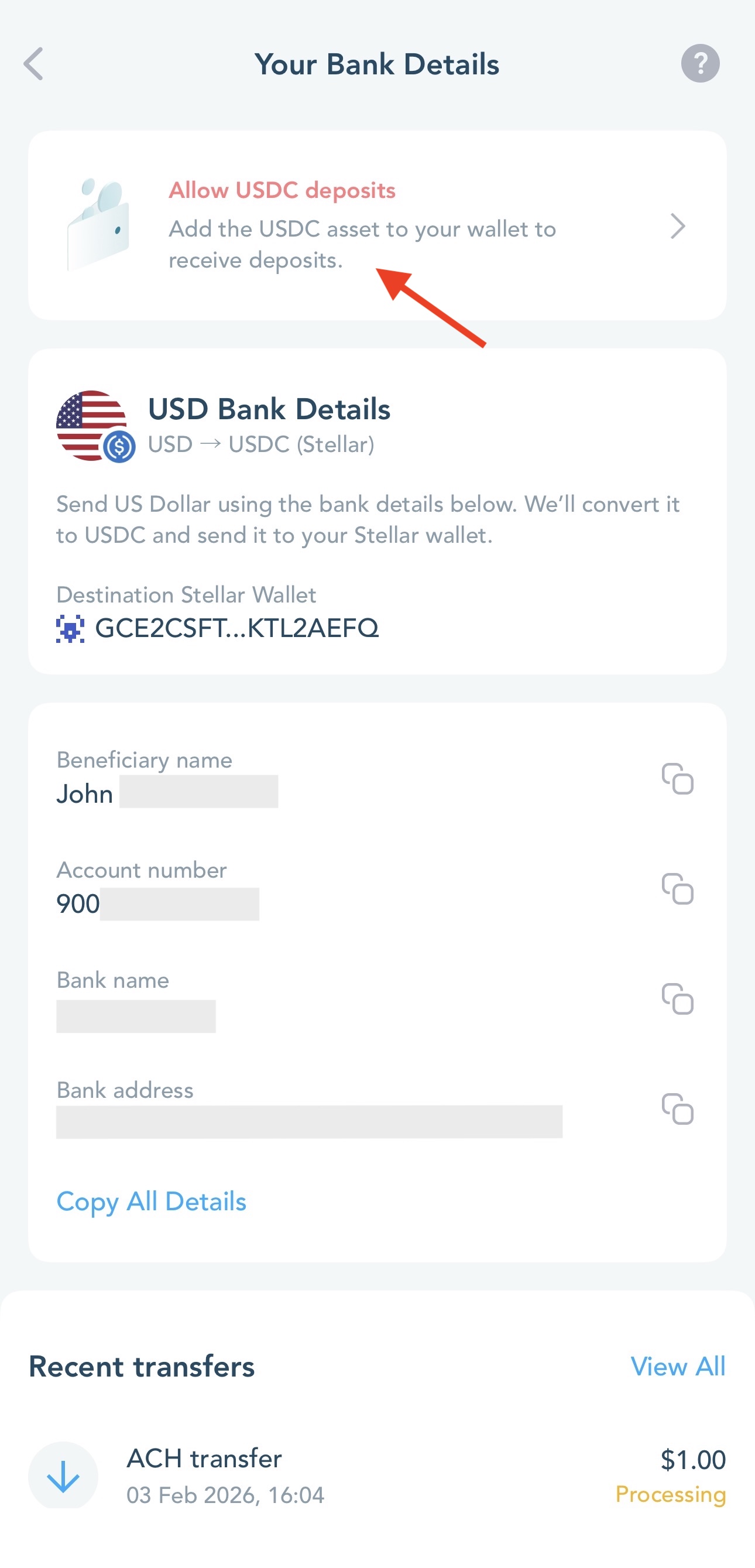
Important: Do not remove the USDC asset from the destination wallet while you have transfers being processed - otherwise, the funds may not reach your wallet, and you'll need to contact the support team for assistance.
How to make a deposit (bank transfer)
1. In your banking app, create a bank transfer using the bank details shown in LOBSTR.
Tip: Save details as a payee in your banking app for faster top-ups in the future.
2. Once your bank and MoonPay process the transfer, it will be automatically converted to USDC and sent to your Destination Stellar Wallet.
Important: Send USD only to USD Bank Details, and EUR only to EUR Bank Details (currency mismatch can delay or fail the deposit).
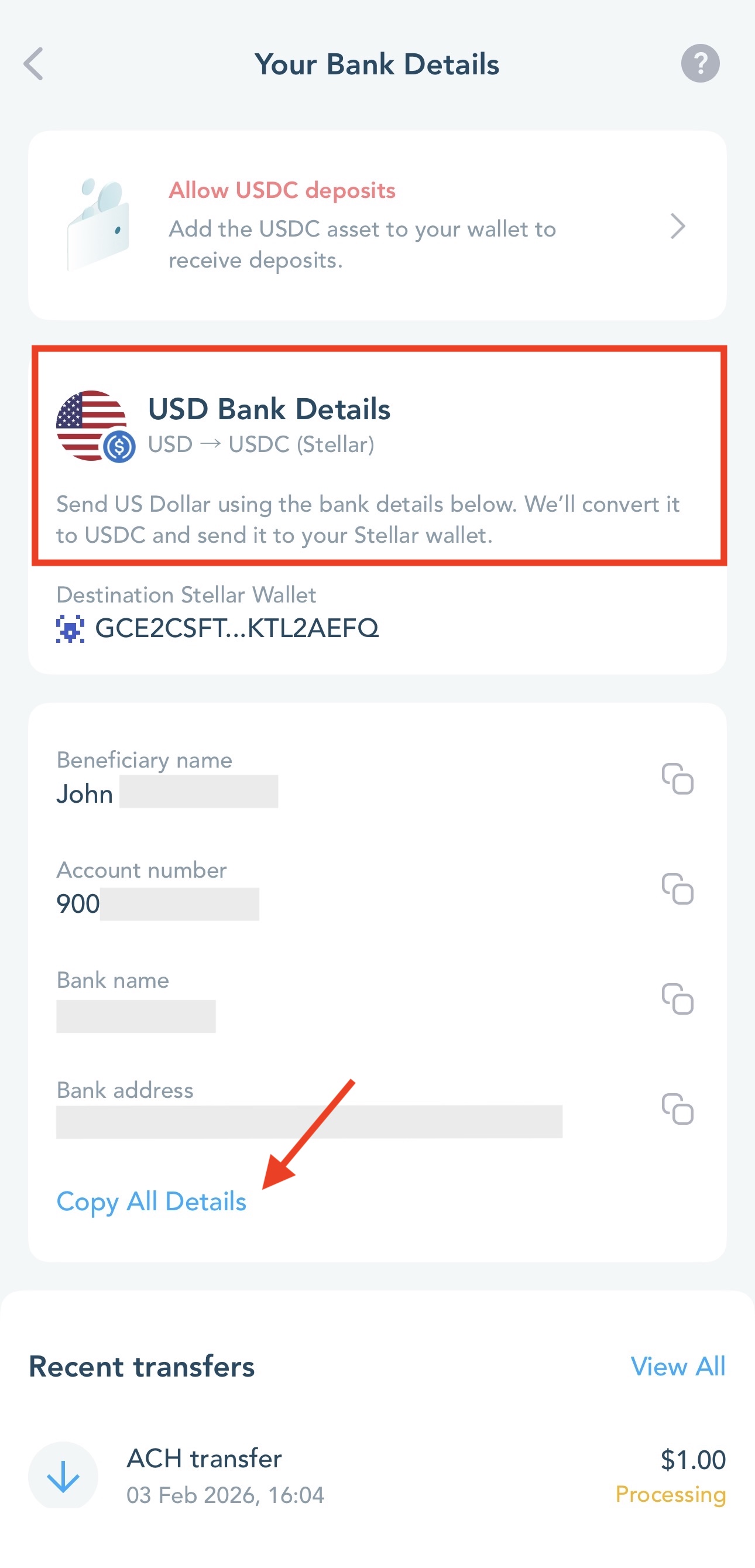 | 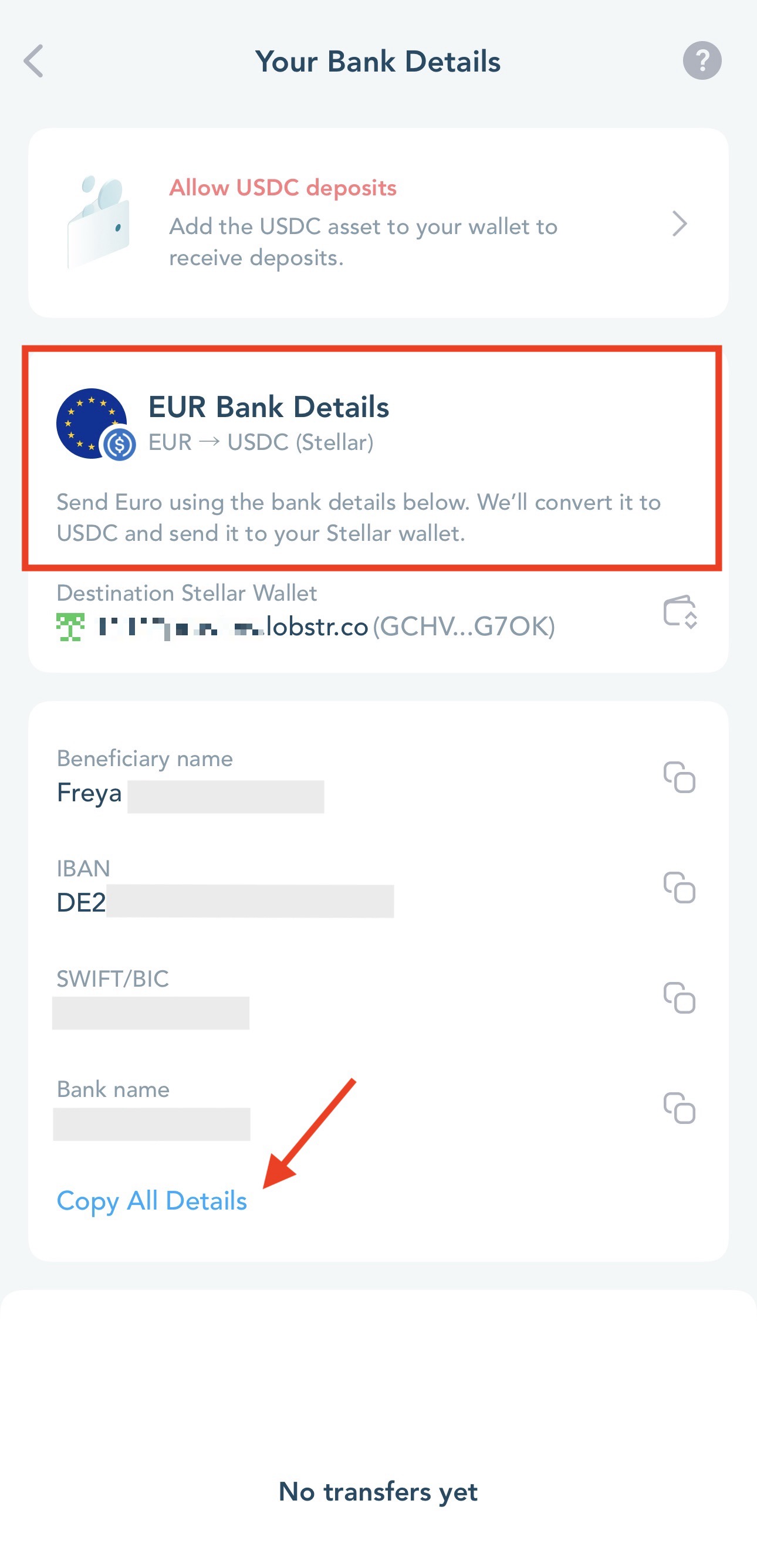 |
Based on the currency you selected when setting up your bank details, you can receive ACH, Wire, RTP, SEPA, or SWIFT transfers.
Tracking your transfers
You can track your transfers in LOBSTR:
- Your Bank Details → Recent transfers (shows up to 3 transfers).
- Tap View All to open the full Transfers list.
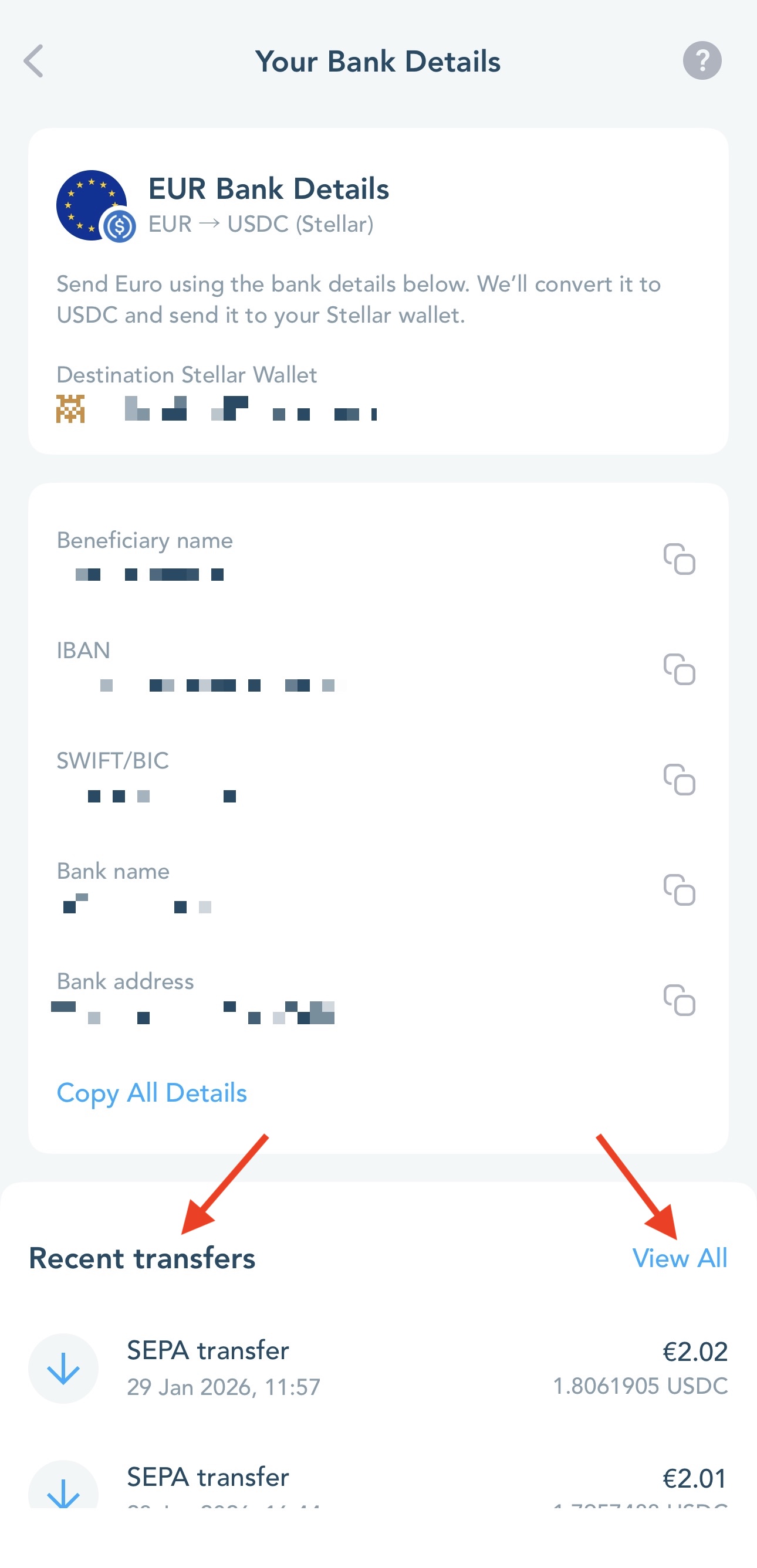
Statuses you may see:
- Processing – your transfer is being reviewed, converted, or sent to your wallet.
- Failed – the transfer could not be processed. Please contact MoonPay support: https://support.moonpay.com.
- If the transfer is successful, the specified amount of USDC will appear in your wallet.
Using multiple Stellar wallets?
Your bank details are linked to a specific wallet shown as Destination Stellar Wallet.
Next to the Destination Stellar Wallet, you may see a button to change the wallet address if the currently active wallet differs from the one you used to set up the banking details.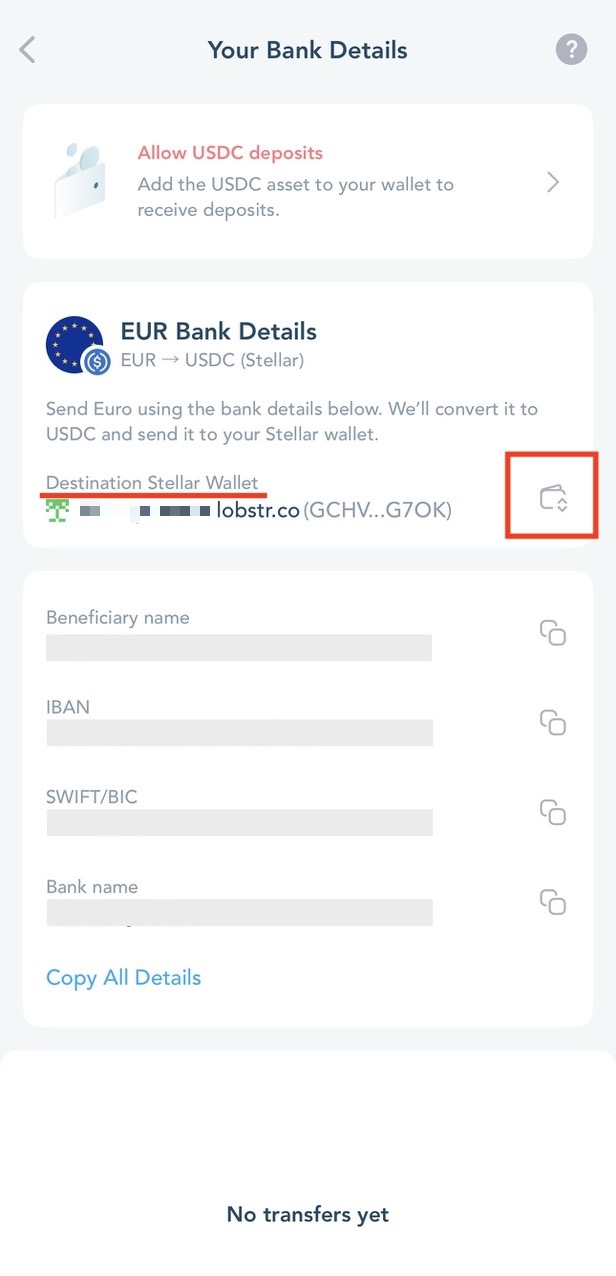
By selecting Continue in the Update destination wallet sheet, you will be redirected to MoonPay. Here, you can confirm the update of your Stellar wallet address linked to your bank details. This will allow you to update the destination wallet for all future transfers associated with these bank details.
Tip: Make sure to add the USDC trustline to the wallet that will be used for your future bank transfers.
For questions related to Bank Details setup, verification, limits, fees, or transfer processing, please contact MoonPay Support at https://support.moonpay.com.
Buying or selling crypto-assets can be risky, and once broadcast to the blockchain, transfers are irreversible. Learn more [https://www.moonpay.com/legal/risk]. When using Virtual Account (Bank transfer top-up in the LOBSTR App), fees are deducted from your fiat payment and the remaining fiat is converted into stablecoins at the exchange rate shown at the provided webpage [https://iron.xyz/prices], using the timestamp at which your fiat arrives into your virtual account. This service is Powered by Moonpay. USDC: https://www.circle.com/legal/mica-usdc-whitepaper
Learn more:
MoonPay partnership. Buying Lumens and other crypto with LOBSTR
How can I deposit USD with LOBSTR?
Was this article helpful?
That’s Great!
Thank you for your feedback
Sorry! We couldn't be helpful
Thank you for your feedback
Feedback sent
We appreciate your effort and will try to fix the article