For users who connected their wallets to LOBSTR before September 1, 2020, wallet keys are securely stored on our servers in encrypted form. However, you may prefer the improved security of the newer on-device key storage system, where your wallet keys are generated and stored directly on your device.
The old server-side key storage system is now deprecated and will no longer be supported. All users who still use the old storage system must complete the migration process before July 10, 2026. After this date, wallets that have not been migrated will no longer function until the migration process is completed.
This article explains how to switch your wallet to the on-device key storage system using the LOBSTR mobile app.
Before you begin, we recommend backing up your wallet’s secret key in case you need to access your wallet outside of LOBSTR in the future. At the moment, secret keys for wallets using the old storage system can only be viewed on the LOBSTR website. To back up your secret key, sign in to your account on the website and navigate to Settings → Wallets → Manage Stellar wallets → click the ... button next to a wallet → Reveal secret key.
Once the migration is complete, your wallet will be considered a multisig-enabled wallet by other services on the Stellar network. If you perform transactions outside of LOBSTR, you may need both your old and new secret keys.
Learn more: Switching to on-device key storage: Migration process overview.
Important:
1. Before starting the migration, make sure your Stellar wallet is activated and has sufficient available XLM. Wallet activation requires at least 2 XLM, and migration requires at least 0.5 available XLM to add a new signer. If you receive an error, fund your wallet with more XLM and try again.
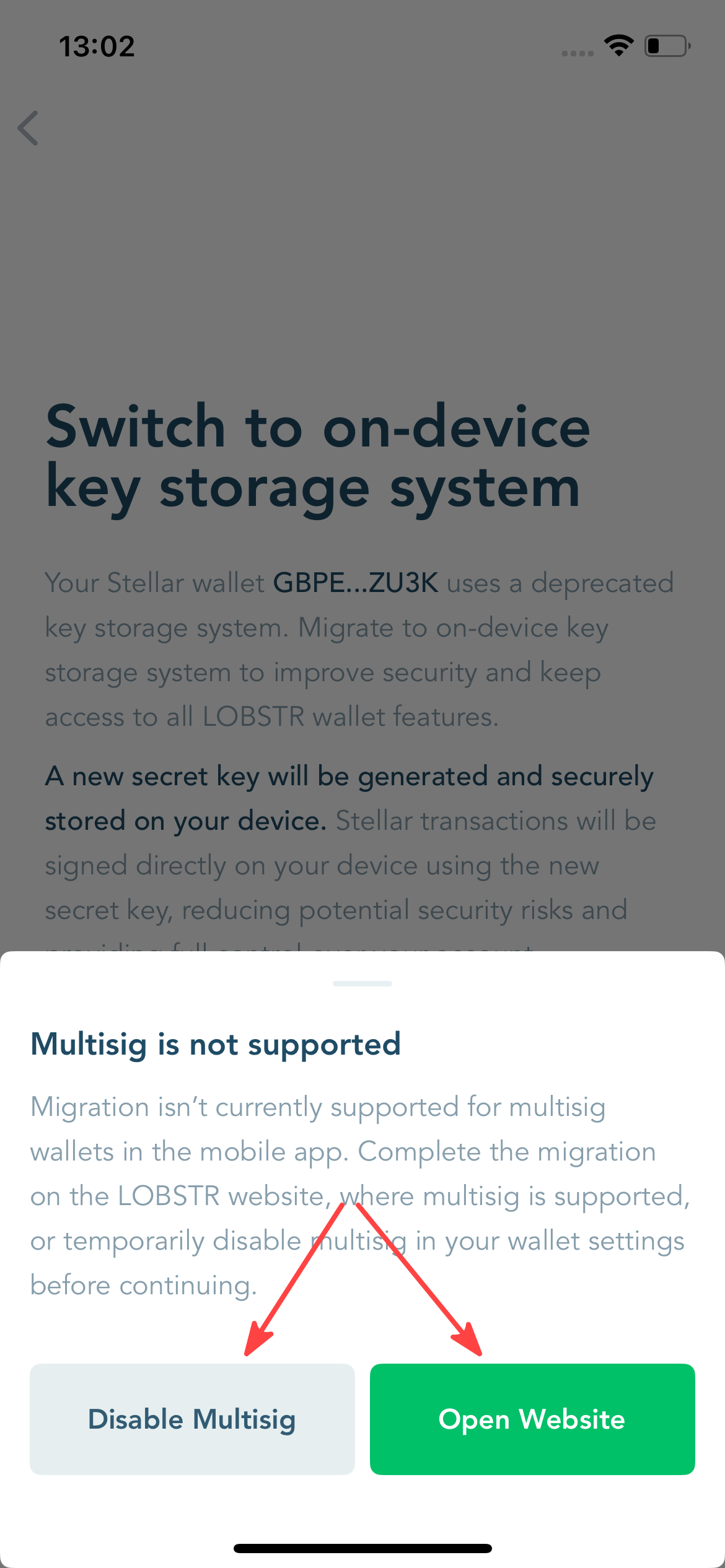
2. Migration is not supported for multisig wallets in the LOBSTR mobile app.
If your wallet already uses multisignature, you have two options:
- Complete the migration on the LOBSTR website, where multisig wallets are fully supported.
- Temporarily disable multisig on your wallet and then complete the migration in the mobile app. How To
To switch your wallet to on-device key storage in the mobile app:
1. Open the migration screen
Tap Start Migration from an alert at the Home scree, or go to Settings → Security and tap Start Migration.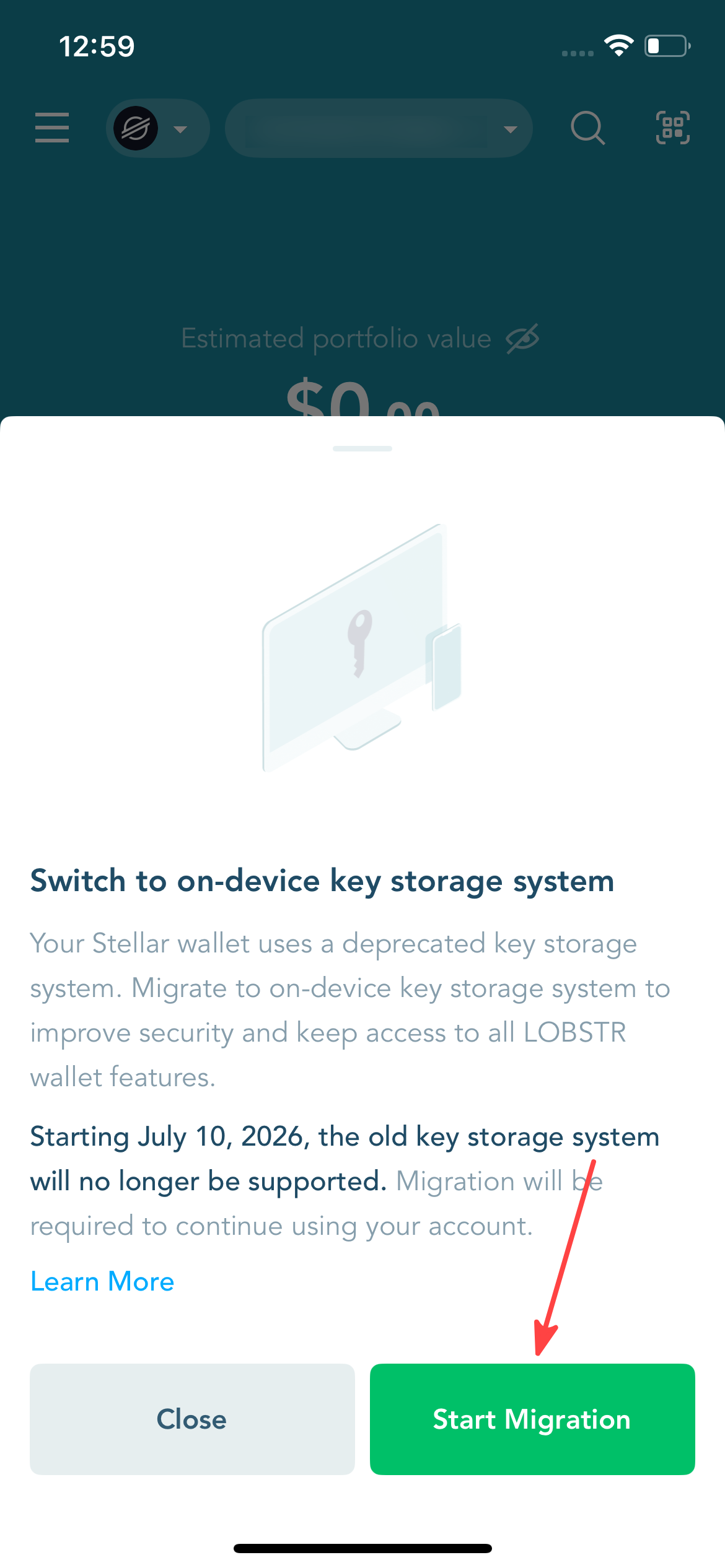
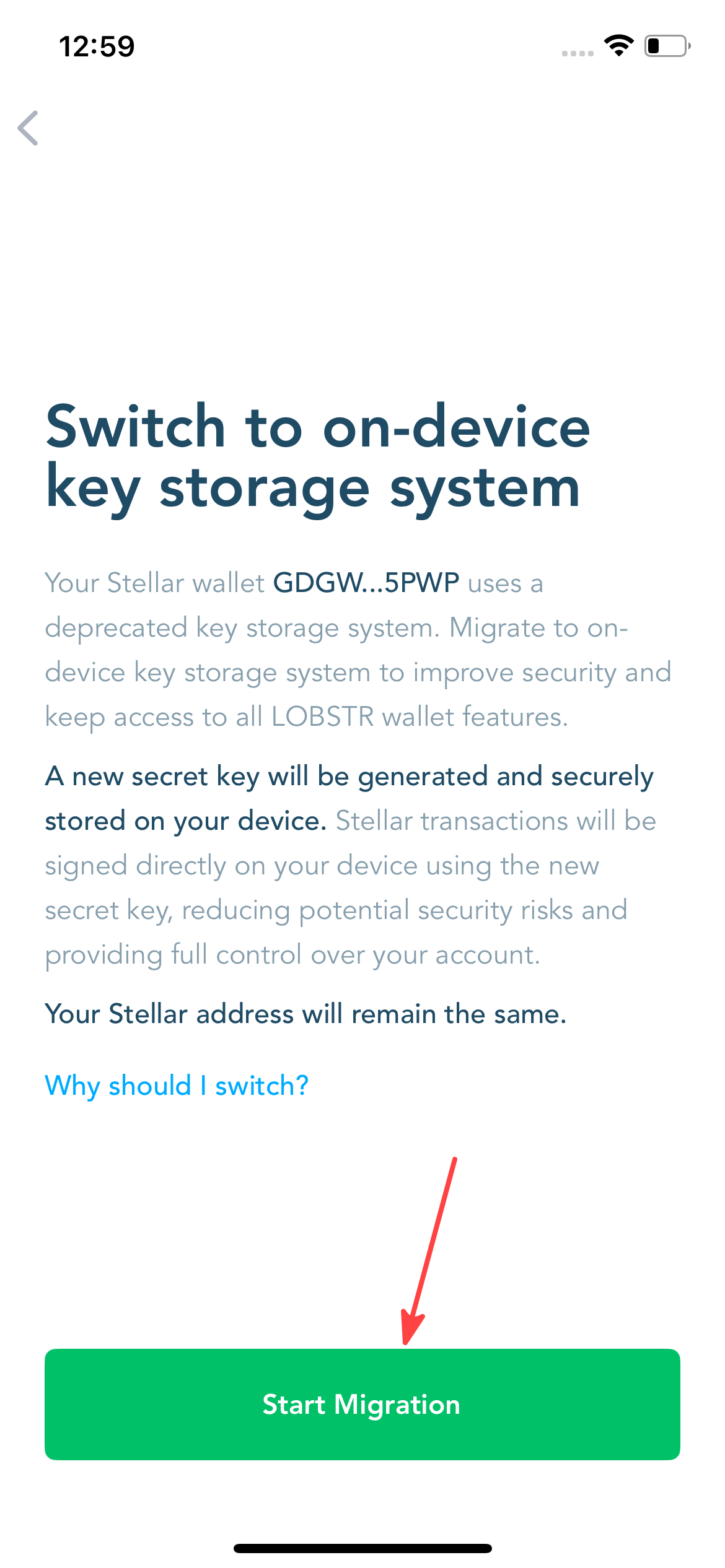
2. Start the migration
- A new Secret key linked to your Recovery Phrase will be generated for your wallet.
- Your Stellar address will remain the same.
- Your previous 10-word Recovery Code will no longer be valid.
Review the migration information and tap Start Migration.
3. Confirm your password
Enter your LOBSTR account password and tap Confirm Password.
Note: You may also be required to enter a one-time 6-digit code, if you have 2FA enabled on your account for additional security.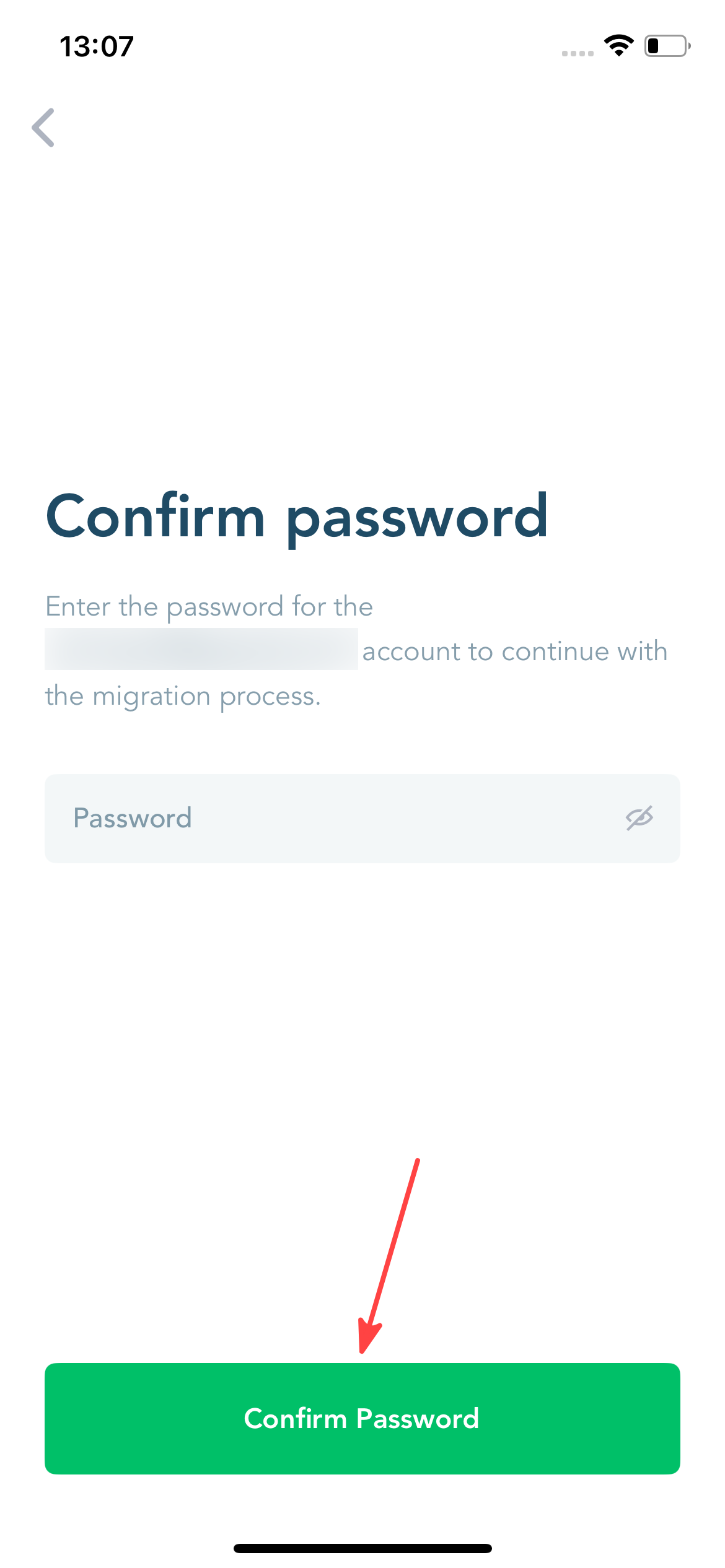
4. Back up your Recovery Phrase
Your new 12-word Recovery Phrase will be generated.
Write the 12 words down in the correct order and store them in a secure place. Never share your Recovery Phrase with anyone. It gives full access ti your wallet and funds.
LOBSTR team will NEVER ask to share your Recovery Phrase.
Tap Continue once you've backed it up.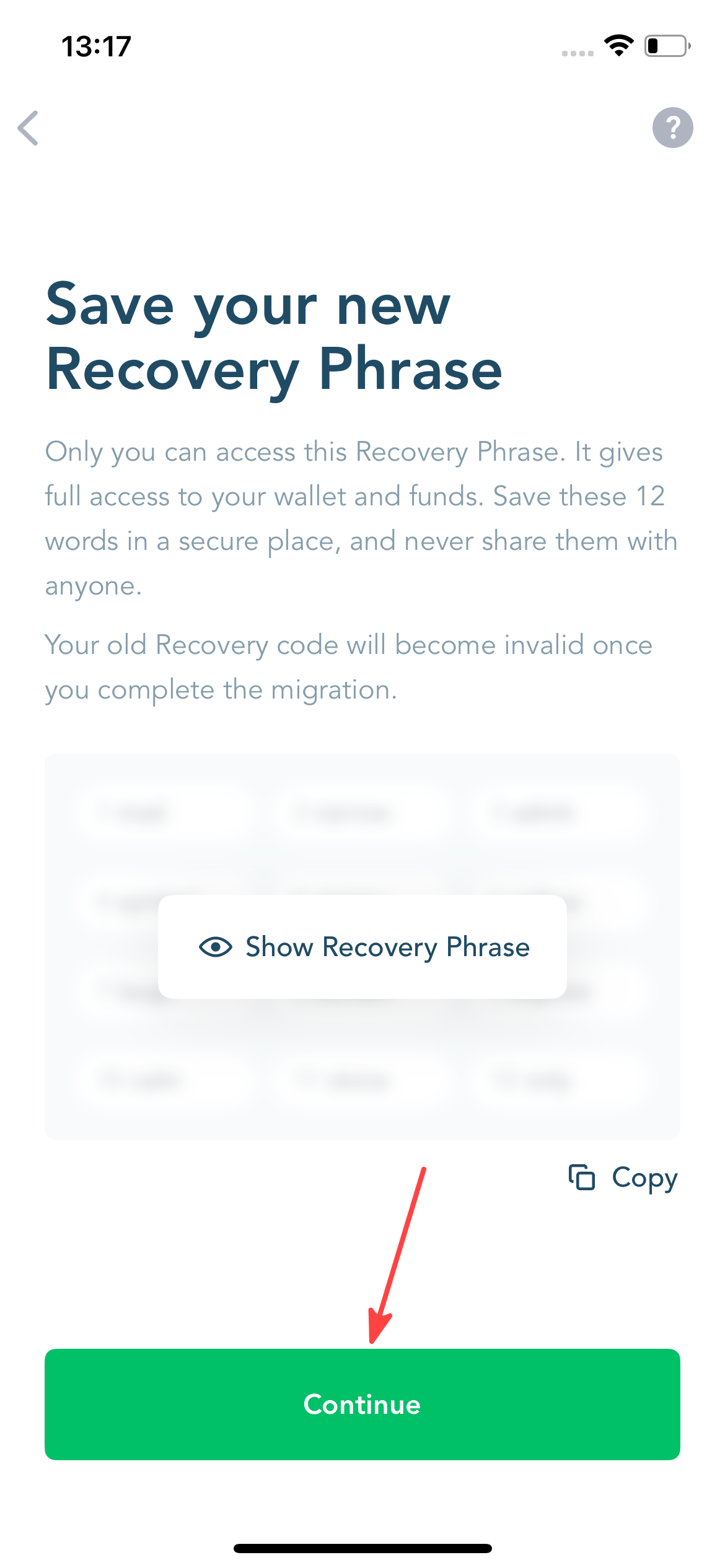
5. Finalize the migration
Review the final migration details and tap Finalize.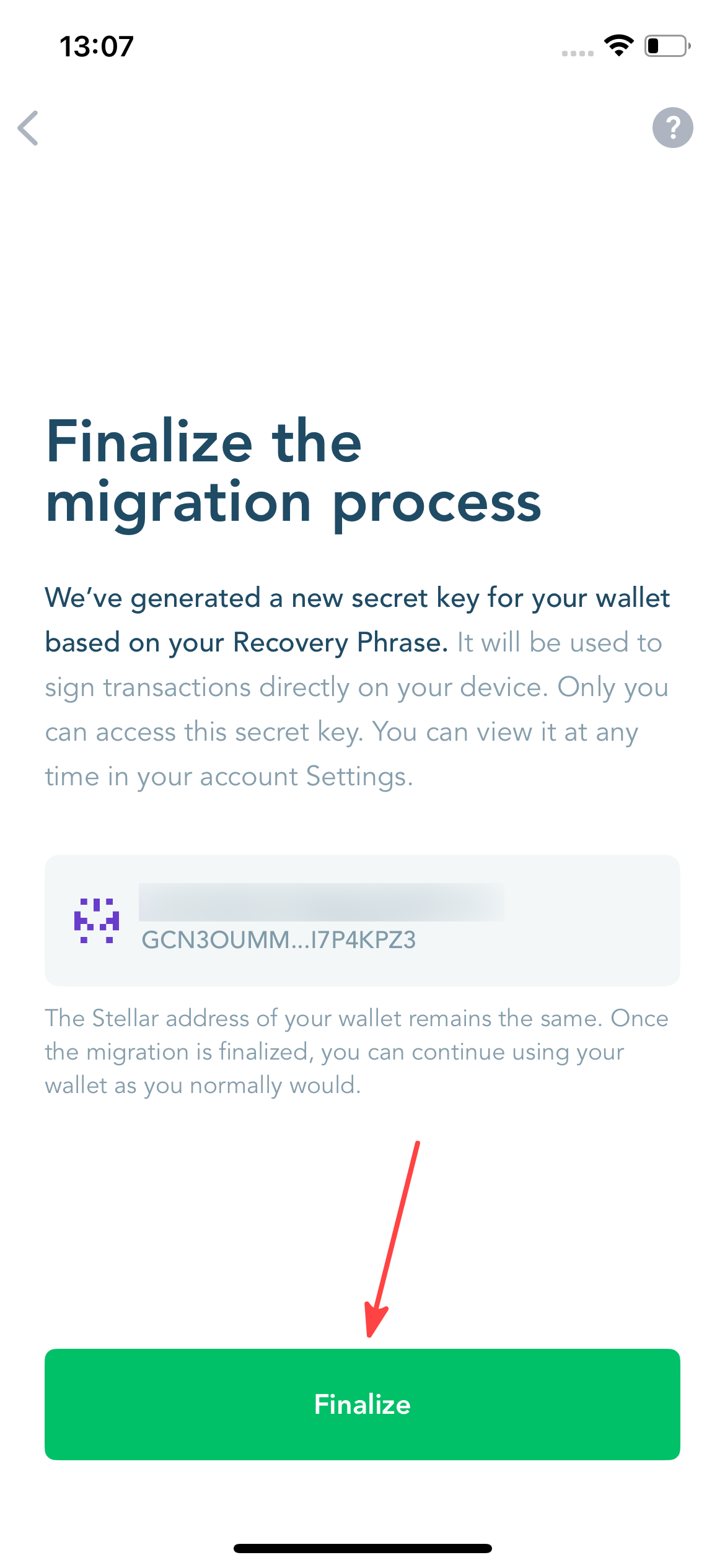
6. Migration completed
Tap Done to finish.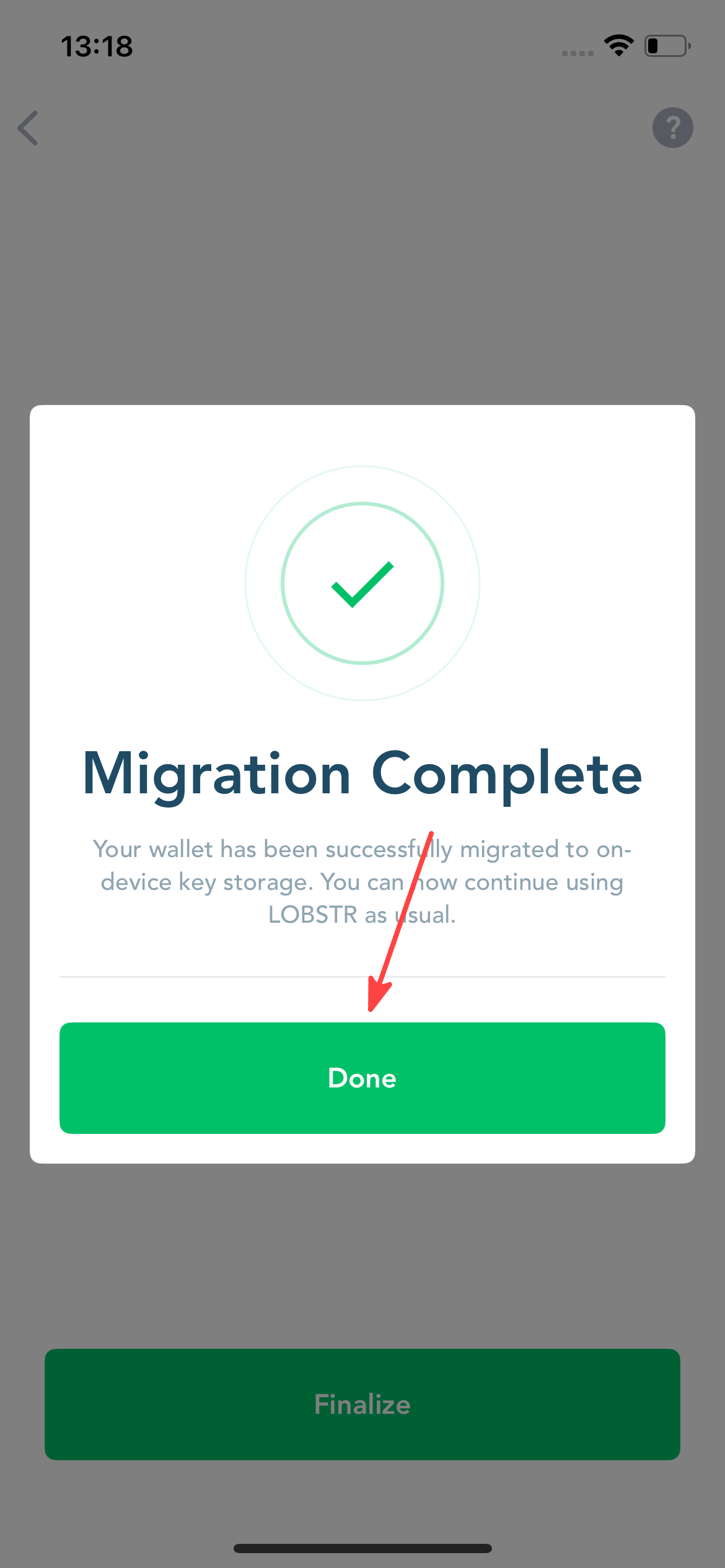
Now that the migration is completed, you can return to your LOBSTR account and continue using it as you normally would.
If you have any questions regarding the migration process, please submit a ticket or reach out via support@lobstr.co.
Was this article helpful?
That’s Great!
Thank you for your feedback
Sorry! We couldn't be helpful
Thank you for your feedback
Feedback sent
We appreciate your effort and will try to fix the article